
Claims User Guide

To use the claims module, the General Ledger must be installed.
Account Codes
Accounting>General Ledger>Standard Account Codes
Four Standard Account Codes need to be added to provide a clear audit trail of claims activity in the General Ledger.
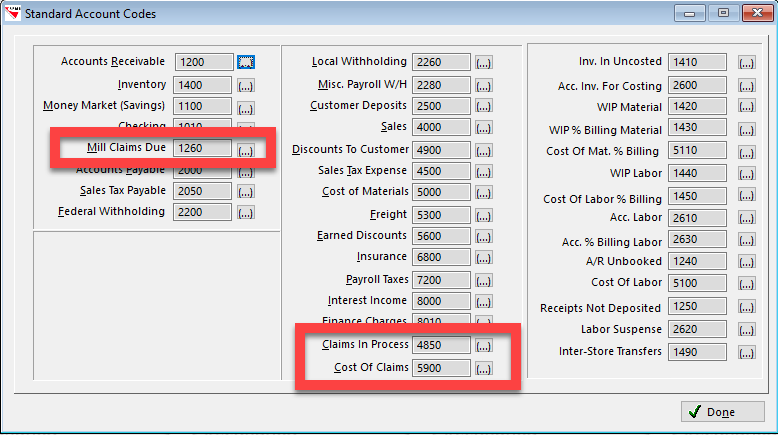
RFMS will use these three codes to post credits and debits automatically. These standard codes are:
- Mill Claims Dues - Current Asset: DEBIT when processed (job costed) and CREDIT when settled (paid)
- Claims in Process - Sales Income or Misc. Income: Credit when processed (job costed)
- Cost of Claims - Cost of Sales or Misc. Expense: Debit when processed (job costed)
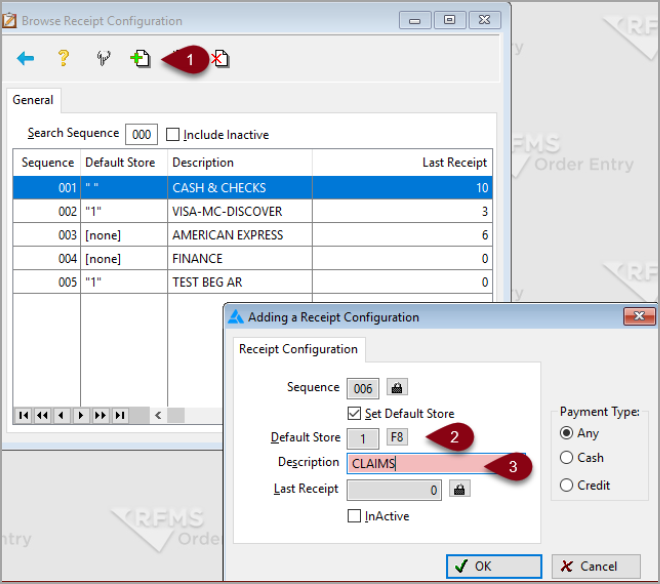
Receipt File (Optional)
Order Entry>Utilities>Setup>Receipt Configuration
Create a receipt file and label it "For Accounting Use Only" or "Claims."
Customer Types(Optional)
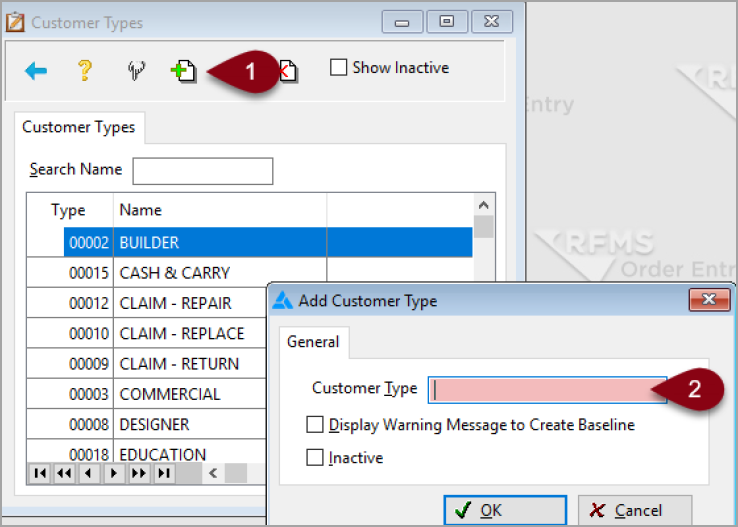
Order Entry>Utilities>Setup>Customer Type
Create customer types to help with tracking by using reports.
Some suggestions are
- Claims-Returned
- Claims-Replacement
- Claims-Repair
Salespersons(Optional)
Order Entry>Utilities>Setup>Salespersons
Creating a Claim salesperson helps with tracking of just Claims.
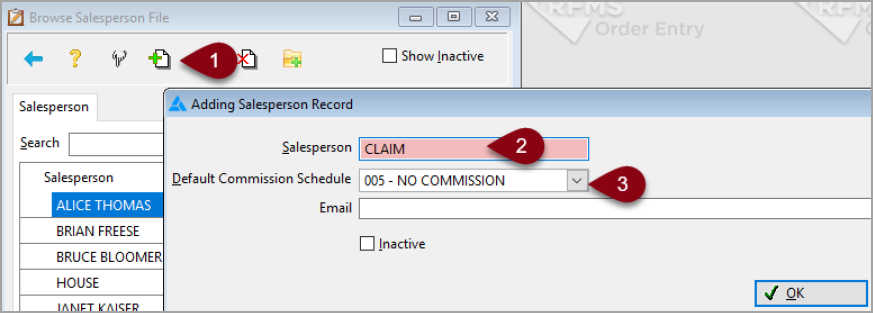
If you use a regular salesperson on a claim, then that salesperson's commission will be affected.
Comments
Article is closed for comments.