
If you are using options 0, 1, or 2 on the Tricoder, then click here to go to the Barcoded Inventory Document
File>Barcoded Inventory>RFMS Barcoded Items

This feature is an alternate method of reconciling physical item inventory and locations. It utilizes the RFMS Barcode (called R barcode), which gives the same “R” barcode number to inventory records that match on PC, Item #, Name, Description, and RunLot. It can also be used with Item Barcodes (I barcode records)
On your Tricoder, select 3 for RFMS Barcode

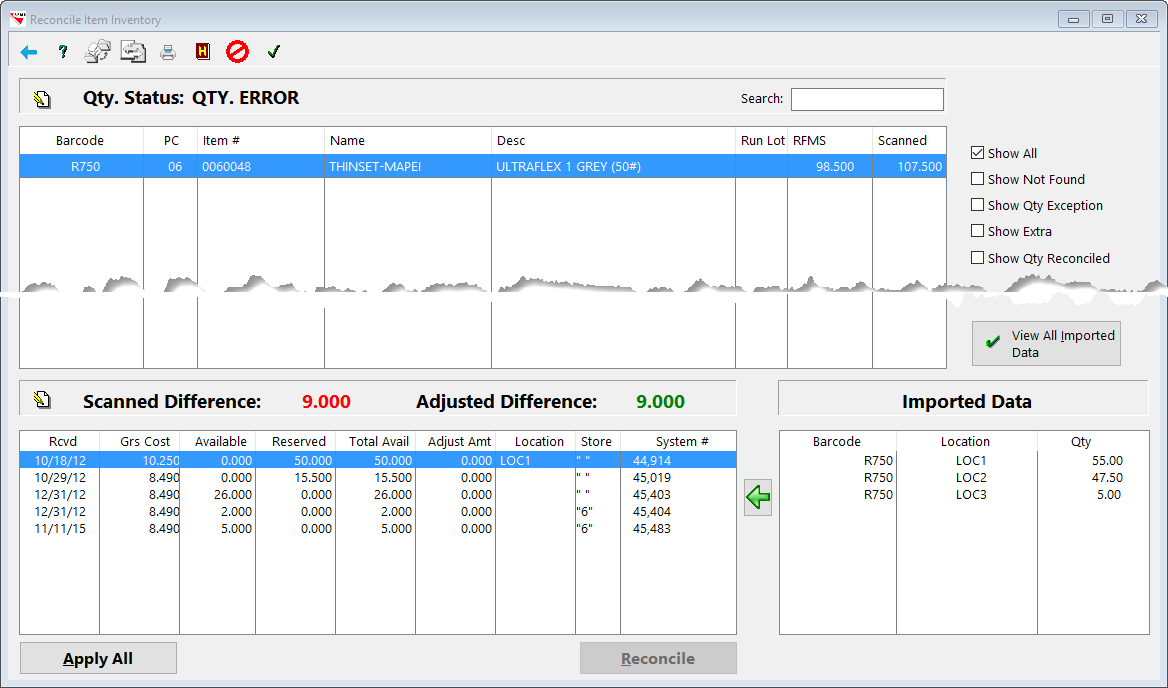
- The top browse shows the combined RFMS Barcode records with the number of units scanned.
- The Bottom Left Browse shows the actual inventory records from the selected stores that make it up.
- Total Available has to be greater than zero
- The Roll/Item has to be received.
- Uncosted Rolls/Items will show but cannot be adjusted. The adjustment amount will be in red.
- The Bottom Right Browse shows imported record with that barcode. No store code is shown as the store code is not part of the RFMS Barcode.
Steps to Reconcile
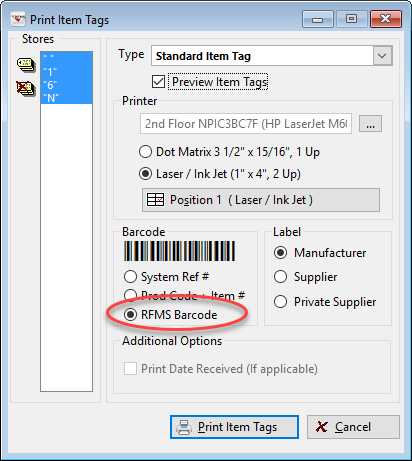
1. Item Tags must be printed with the RFMS Barcode.
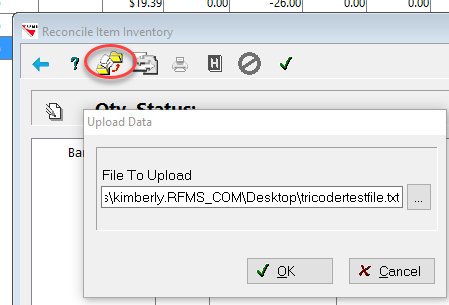
2. Upload the file
- Open Notepad program to a new file
- Upload data to Notepad
- Save at least 2 copies of text file, as one will be removed when uploaded.
- Then go to INVENTORY / FILE / BARCODED INVENTORY
- Click Upload data and locate the saved text file (maximum file name {including folder path} is 255 characters)
3. Prepare the Data. If Spot Check checkbox is unchecked, then all of the not found data will show.
Select only the stores whose inventory was scanned.

4. In the example below, records of R750 (Item # 0060048) were scanned in 3 different locations, while the inventory file show inventory in 5 different records. The scanned amount was 9 units more than the amount shown in inventory. If it is determined that the scanned amount is incorrect click the edit button to change the scanned amount. An example would be if spot checking for one store in a warehouse, but material from another store was also scanned.
5. To reconcile:
- Adjust the amount in location 1 from 50 to 55, by highlighting the record and clicking in the Adjust Amt column. In this example type in 5 to add 5. Tab past location to see the adjusted difference take affect.
- Then Adjust the amount of the other records to account for the rest of the difference.
- Once the adjusted difference equals zero, click reconcile to apply the changes.
6. Adjust Locations
- Highlight on the right the record to give a location and highlight on the left the location to copy. Then click the green arrow. Example : Adjust the location record with 5 available to location 3, highlighting both areas and clicking the green arrow.
- Alternately highlight the record on the right, click in the location field and type in the new location.

Barcoded Inventory Status Report
This report prints all the prepared records from the RFMS Barcoded Items browse. Page breaks when Qty status changes.
Should show the Uncosted checkbox when using 'I' barcodes

After clicking the Print button, the Barcoded Inventory Status Report screen will appear. Make selections and click Print.

Comments
Article is closed for comments.