
RFMS has the ability to calculate taxes to be collected and remitted for orders which are:
- Sales Tax
- Use Tax
- Mixed Sales/Use (Line Tax)
- Tax Exempt
- Resale
- Misc Tax
The type of tax, percentages and method of calculating tax are set up in:
- City list.
- Store codes.
- Customers can be designated as resale or tax exempt.
Tax Method (on City or Store Code)
Choices are:
Use Tax
All Use Taxes are calculated on installed jobs only and are automatically based on the materials cost. If this selection is made, the system will still calculate sales tax on orders without a labor charge or line. The system will display and report use tax throughout the system based on gross cost. The final calculation for tax payment can be figured either on gross or net cost.
Other Situations
If there is a figure in the sales tax field of a customer order with no labor, the system will assume that it is a Sales tax order. If configured as a Use Tax state and no sales tax is calculated on a customer order with no labor, the system will assume this is a Use tax order.
Sales Tax
This selection should be made in states that require that taxes be paid on the total selling price, including profit, of either material only or material and labor. If configured as a Sales Tax state and Line Balancing has been enabled, tax will automatically be broken out at the time of exporting the line totals to the header.
Line Tax (Mixed Taxes)
Line Tax allows the tax method to be determined on a line-by-line basis when entering the customer order. Therefore, an invoice or order may have lines on which use tax is paid and other lines on which sales tax is paid. If this selection is made, a check box will appear on the order line entry screen to indicate whether or not a line is use tax.
Sales Tax Base
Select one to use as the sales tax base (GST base in Canada):
- Material
- Material + Labor
- Material + Labor + Misc. Charges (+ GST in Canada)
- Material + Misc. Charges (+ GST in Canada)
Misc. Tax Base
Select one to use as the miscellaneous tax base
- Material
- Material + Labor
- Material + Labor + Misc. Charges
- Material + Labor + Misc. Charges + Sales Tax
- Material + Misc. Charges (+GST in Canada)
- Material + Misc. Charges + Sales Tax
Tax Percentage
Enter the tax percentage rate commonly used, whether it is for use tax, sales tax, GST (for Canadian companies), or a miscellaneous tax.
Pay Tax When
When the tax reports are printed, the tax considered due is based on the selection to "Pay Tax When":
Delivered: tax is due when the customer order has been job costed.
Delivered & Paid: tax is due if the customer order has been job costed and paid in full.
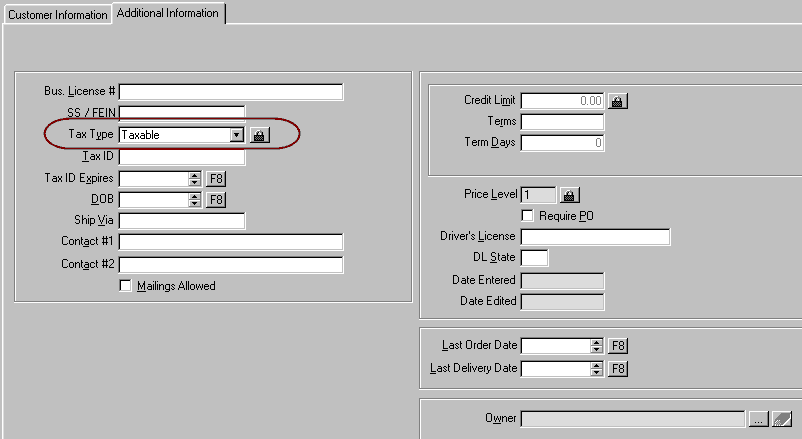
Customer
A custom can be set to be a specific tax type. The choices are:
- Taxable
- Resale
- Exempt
Customers set to resale or exempt are required to have a Tax ID.
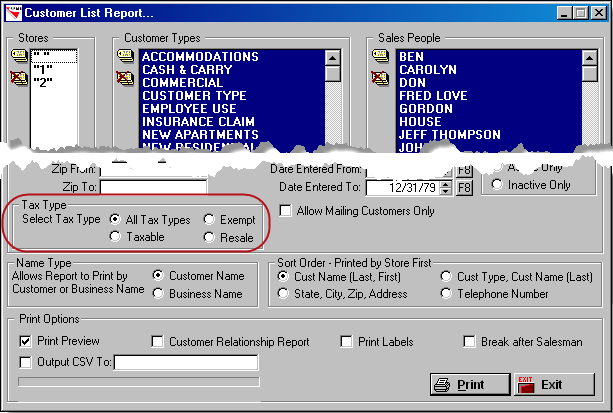
A report of customers with the various tax types is available from Order Entry>File>Customers>Printer Button.
RFMS has two ways to create tax exempt sales based on the customer record, Tax Type and Tax Certificates. These two methods are not meant to be used together as the reporting and warnings are not consistent between the two.
Collecting Taxes
Sales Tax
Set Up
Stores and Cities are set as sales tax.
- If the Ship to city on the Customer Order has an exact match in the City List the Sales tax pulls that information.
- If an exact match is not found the Sales Tax is pulled from the Store Code setup.
* The Switch “Sales Tax from Store Location” supersedes this. If this switch is checked the Sales Tax will always be calculated based on the Store Code setup. This switch DOES NOT affect Use Tax. Use tax
Customer Order Fields
Sales Tax
This field is supplied by the system according to the way store code and/or city list set for tax computation.
Press Control-T or right click the mouse to compute sales tax while in the Sales Tax field. Using right click method, gives the option of calculating both the sales and misc. tax in one step.
The sales (or GST tax) and miscellaneous tax can be edited on an order by right clicking in the tax field and then clicking to calculate either one or both of the tax amounts.
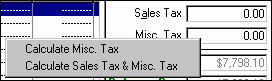
If a sales tax or misc. tax is entered on an Exempt or Resale order, the tax status will be changed to Taxable. A message will alert that the change has been made.
If a line on the order is edited changing the line total, the sales tax will be recalculated.
Misc. Tax
This field allows adding any miscellaneous tax that may be required.
Exempt or Resale
Set Up
Customers can be set as exempt or resale Orders for customers set as exempt or resale will automatically inherit the tax status from the customer.
A job can be changed to exempt or resale using the tax status field on the order.
The system can be set to require a tax ID number in Order Entry>Utilities>System Options>Customers>Require Tax ID in Customer File for Exempt and Resale Orders
Customer Order Fields Tax Status
Click the down arrow to select a tax type for the order. Normally, if store code and city lists set up accurately, this field will be set correctly. Tax statuses available are Taxable, Exempt, and Resale. See Store Codes for more information. If the order is Cash & Carry or has Misc. Taxes entered on an Exempt or Resale order, the Tax Status will be changed to Taxable
In order for the resale tax exempt report to display the material net for tax exempt for re-sale order the customer order must use a ship to city set to Use Tax. If the order does not have a ship to city the Store Code assigned must be set to Use Tax. If Sales Tax City or Store is used for a tax exempt customer the report will show zero cost.
Use Tax
Set Up
Stores and Cities are set as use tax.
Use tax is figured on the gross or net cost depending on the choice made at the time of reporting and is paid by the store based on the place of installation. The tax in this case is technically not paid by the customer but by the store.
Use tax would be set up on the city or store code. For customers that are required to pay use tax a job would be calculated as use tax vs sales tax if:
The order has at least one material line and the tax method for the ship to city or store has been configured as "Use Tax".
And
- A service line is entered with or without a price.
- Or an amount is entered in the services field on the order.
Or
The material line has a zero price (causing no sales tax to calculate).
Paying Taxes
Accounting>File>Month End>Tax Reports> (Print Tax Due or Print & Post Tax Due)
There is an option to choose between using net or gross cost when calculating use tax for tax reporting.
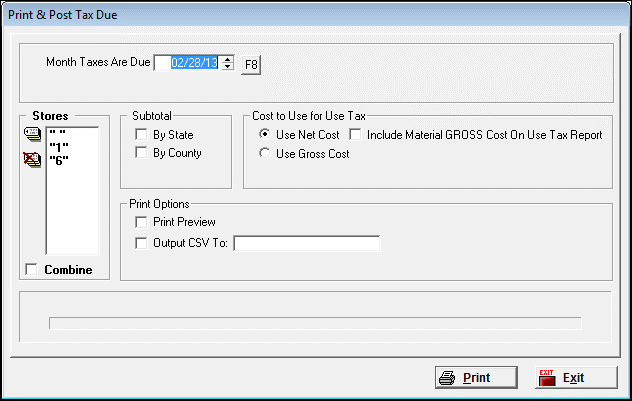
Print Tax Due
These reports are used at month-end to determine any sales or use tax calculated on customer orders. The Print Tax Due is actually multiple reports which are a working list for reconciliation and preparation for payment. Only records with an unpaid tax status will be included. Depending upon the type of sales for the month and choices made, up to a number of reports may print. Those are: Sales Tax, Use Tax, Resale and Tax Exempt.
Options
Month Taxes are Due
This date defaults to one month prior to the month currently set for the system date. Press F8 or use the up or down arrows to change if necessary.
Stores
Choose all store codes by clicking the Tag All button, or click individual store codes to select one or more.
Combine Stores
Click in this box to total all of the store codes together.
Subtotal by
The tax report always subtotals by city as a default setting. However, the report may also be subtotaled by state and or county.
Print Preview
Click in this box to see the report on the screen before sending it to the printer.
Include Material Cost on Use Tax Report
Click in this box to print the gross cost of the material on the Use Tax report only. This will print gross cost regardless of the choice made on cost to use for use tax.
Reports
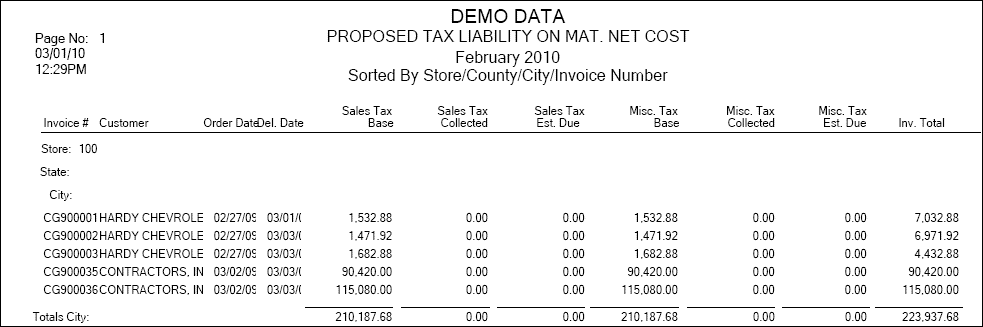
Proposed Tax Liability
Title
Proposed Tax Liability on Material ________ cost. Although the first report, sales tax, does not use the material cost in calculations, the option net or gross cost chosen will show in the title.
Invoice Number /Customer
Sales Tax Base
The amount of tax the system calculated based upon the tax set in the store code or city list.
Sales Tax Collected
The sales tax on the customer order header.
Sales Tax Due
The tax due based on the sales tax methods set up in the store code or the city list.

Use Tax Report Shows:
- Order Date
- Invoice #
- Customer
- Del Date
- Material Cost: Net or Gross depending on option chosen
- Invoice Total
- Use Tax
- Material Gross Cost: depending on option chosen
Tax Exempt Deliveries
In order for the resale tax exempt report to display the material net for tax exempt for re-sale order the customer order must use a ship to city set to Use Tax. If the order does not have a ship to city the Store Code assigned must be set to Use Tax. If Sales Tax City or Store is used for a tax exempt customer the report will show zero cost.
Shows:
- Order Date
- Invoice Customer
- Del Date
- Material Net Cost
- Invoice Total
- Use Tax
- Material Gross Cost
Print and Post Taxes
When satisfied that everything is correct, print the Print and Post Tax Due Report to mark open tax records as paid. This report only includes records that are in an unpaid status. Once the Print and Post Tax Due report is completed, the records are marked as paid and will not show up next month. Use this information to post payables for remitting the taxes.

When posting all tax checks to the check register, they should be posted to the Sales Tax Payable account code. Then, when entering that figure at the time of Journal Close, the system will post it as a Sales Tax Expense
Unpost Taxes
Accounting>File>Month End>Tax Reports>Unpost Taxes
This selection allows tax records that were previously marked as paid during the Print and Post Tax Due routine to be unmarked, using the date entered when the Print and Post Tax Due was originally done.
Print Tax History
Accounting>File>Month End>Tax Reports>Print Tax History
This report prints taxes paid for the period specified. A beginning and ending month are required. The tax report always subtotals by city as a default setting. Subtotaling by state and or county is also possible. The reports may be printed for an individual store code, a group of store codes or for all store codes.
Posting Taxes
Accounting>File>General Ledger>General Ledger Functions>Journal Close
Sales Tax Liability
Date Sale Tax Remittance Check in the Next Month
Have the sales tax liability number for the month being closed on hand when beginning preliminary journal close. Entering that number when prompted by the system will cause an automatic booking to the journal for the month being closed. The transactions will be booked as a credit to the "Sales Tax Payable" account as defined in Standard Account Codes and a debit to the "Sales Tax Expense" account as defined in Standard Account Codes. Typically the journal close is done some 10 to 15 days after the end of the close month. By booking your sales tax liability this way, you may, when remitting your sales tax payments, date such remittance with the current month's date and post such payments to your "Sale Tax Payable" account. This will then cause a clearing of the liability created by the Preliminary Journal Close routine. If you have more than one store code, the sales tax liability will be amortized by store, based on sales volume of each store.
Date Sale Tax Remittance Check in the Same Month
Leave the sales tax liability number at 0.00 when closing the journal, no bookings to either of the accounts mentioned above will take place. Leaving this number at 0.00 would mean that you have already posted your sales tax liability to accounts payable through the "Add/View/Edit" routine in the Accounts Payable module, at which time you would have booked your sales tax directly to your "Sales Tax Expense" account. Of course, this method would require that you date your entry into Accounts Payable with the same period as the liability period. (i.e. if you had a sales tax liability for the month of July 2011 of $10,000.00, posting that liability directly to Accounts Payable instead of through the Journal Close routine would mean you would have to enter that payable prior to closing the journal and the payable would have to be dated with a July 2011 date. This would result in a credit to your "Accounts Payable" account and a debit to the account specified in your accounts payable record.
Comments
Article is closed for comments.