
Journal Close
To effectively balance inventory, the journal must first be closed with all inventory adjustments posted.
- Deleted inventory adjustments can cause inventory balancing to fail.

Once the journal is closed, the Month End Inventory Balance Report can be created and the corresponding General Ledger Balance report can be created.
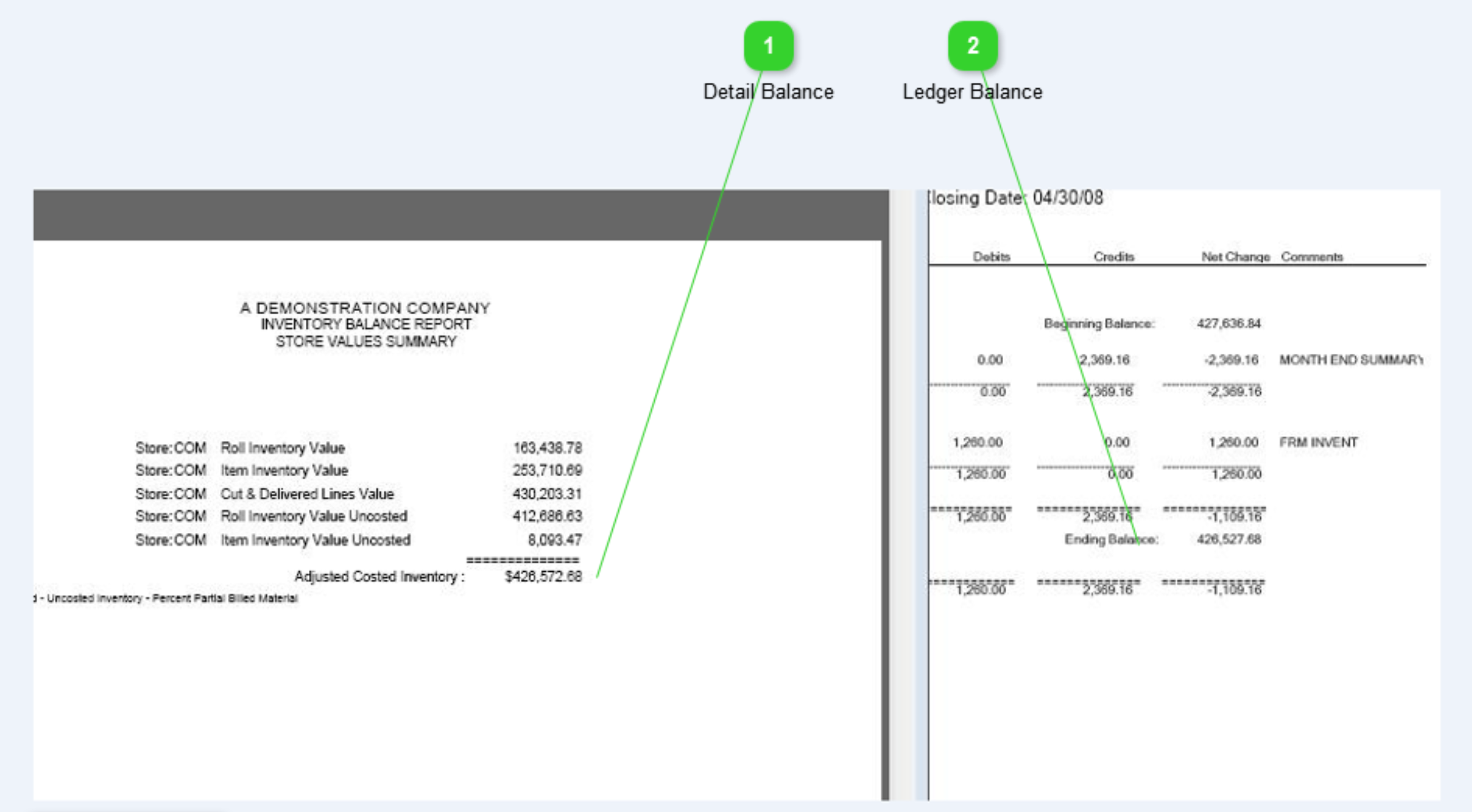
The Month End Inventory Balance Report (MEI) and General Ledger Balance (GL) amounts should equal one another. While the MEI is date sensitive, it is important to understand it is not infinitely date sensitive. Purging data and access code adjustments can impact the report after-the-fact.
Beginning Balance Comparison
This is quite possibly the most over-looked step. Before starting any following procedures, confirming that the previous month reconciliation is still valid. Re-run the MEI report and compare to the Journal. There can be differences associated with transactions that occur after the balancing is complete.
Payables To Inventory Comparison
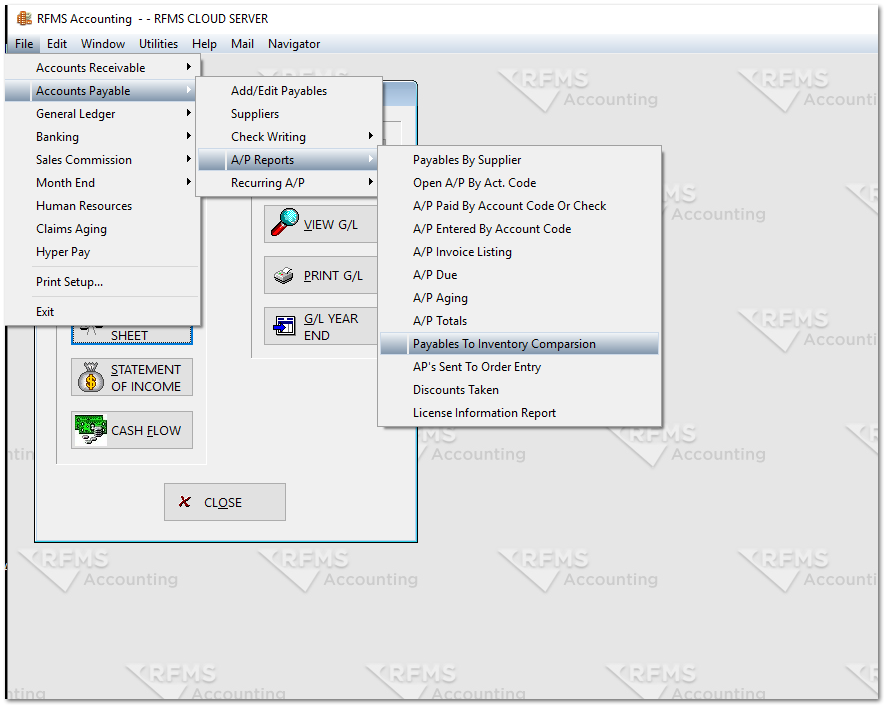
The Payables To Inventory Comparison compares accounts payable invoices that have been coded to the Inventory control account against the associated inventory for a defined date range. The user can choose for mismatch records only.
Payable to Inventory Mismatch Report
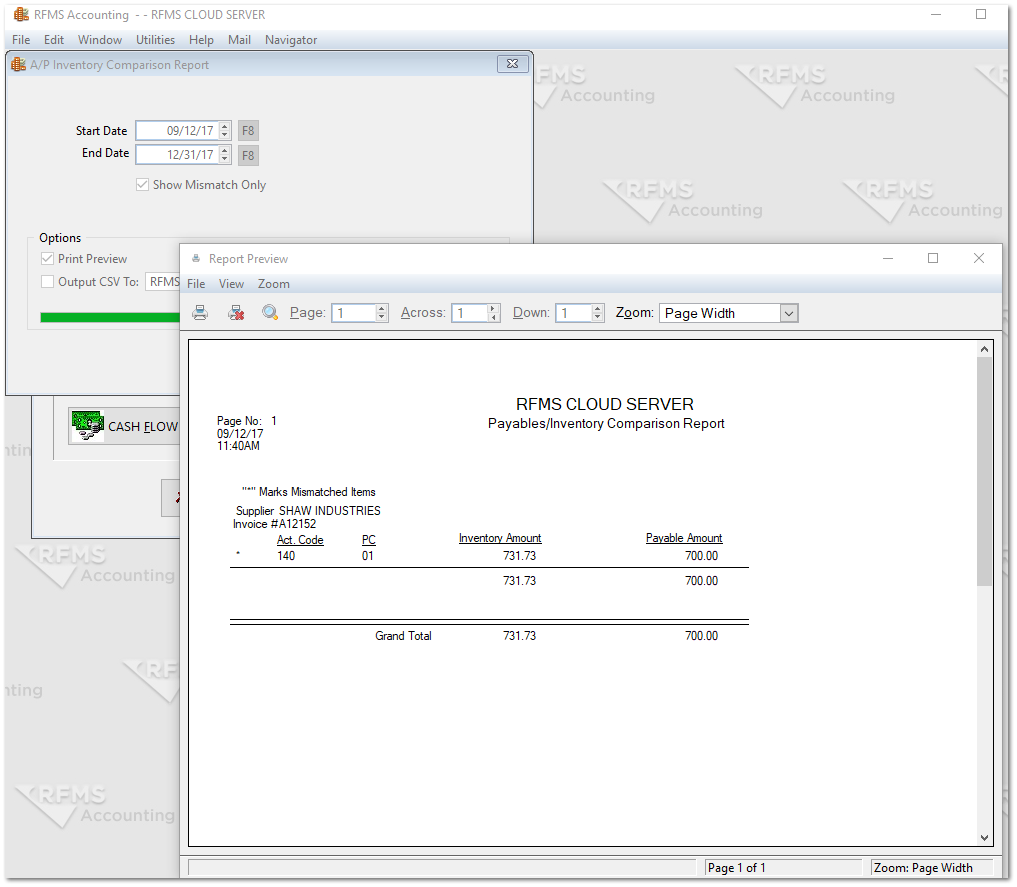
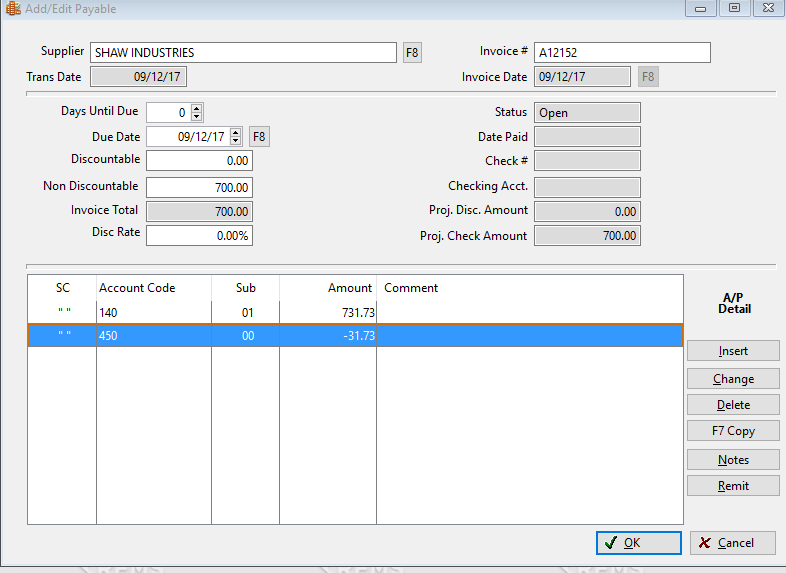
In this example, the Inventory has received a value of $731.73 through the costing process, however, at some point the accounts payable has been changed to $700.00. This will create an out-of-balance amount of $31.73. While the correction of the accounts payable to $700.00 may have been valid, the process for doing so should have been to leave the distribution to the inventory control account at $731.73, and create an offsetting entry of ($31.73) to another account, possibly Cost of Materials.
Review Journal Posting
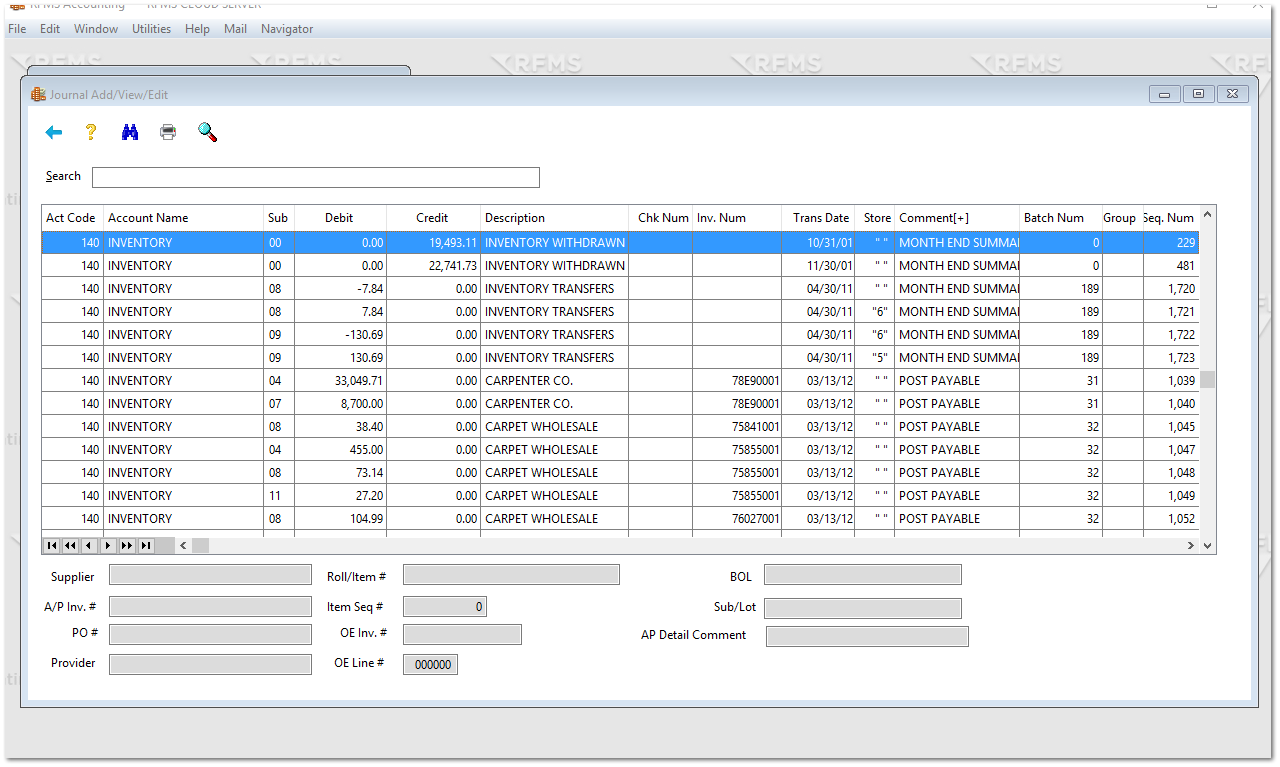
From View Journal, filter to the Inventory account and then click on the Comment column. Investigate anything in the Comment column other than:
- Month End Summary
- Costing
- Delivery Ticket
- Line Un-Delivery
The following items are often found in the control account:
- ADD PAYABLE / POST PAYABLE / FRM PSTPAY indicates that accounts payables are being charged directly to the inventory account without going through costing. This is reasonable if an invoice has been previously voided and reissued.
- EDIT PAYABLE indicates that an accounts payable invoice has been edited after entry. It is possible that these entries net out against each other and have no impact on the account.
- Split Payable indicates that an accounts payable invoice has been split into multiple payments. Typically this has no impact on balancing.
- Void Payable / VOIDED CHECK both create out-of-balance situations assuming that the accounts payable invoice has not been reissued. The reissue would typically present as POST PAYABLE.
- Line P/O Adjust and Line P/O Cost Adjust can typically be reversed.
Once it has been established that there are multiple non-related entries in the control account, the fastest approach to calculating the net impact of the entries is utilizing the Print Journal function and outputting the transactions to CSV, sorting and sub-totalling them utilizing a spreadsheet.
Job Cost Analysis vs. Inventory Credit
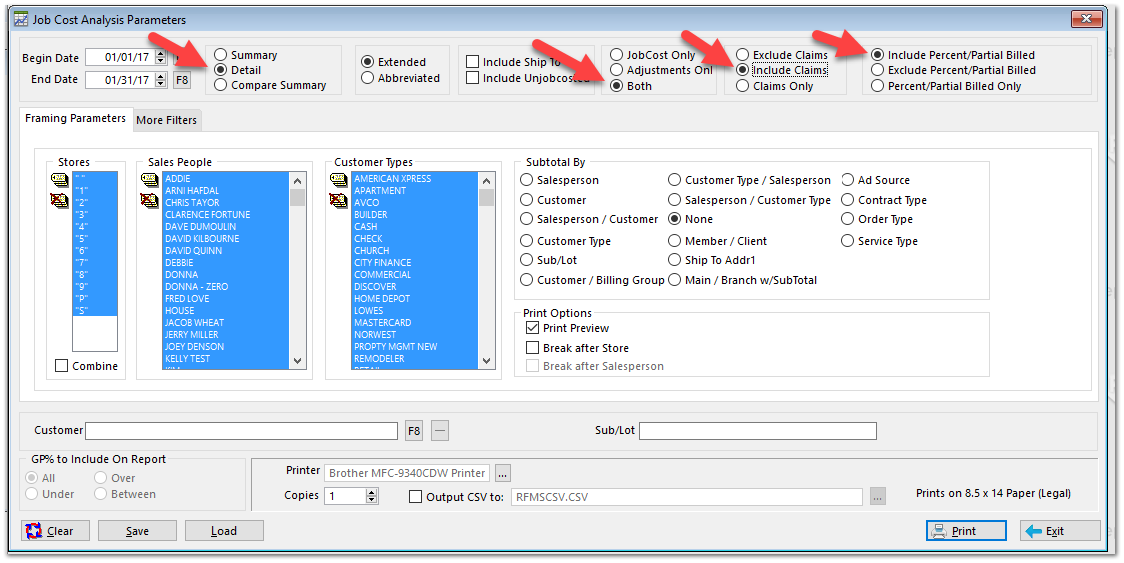
Use the Job Cost Analysis Report from Sales Reports with the above parameters to calculate the credit for the time period for the inventory control account.
Accounts Payable Entered By Account Code vs. Inventory Debit
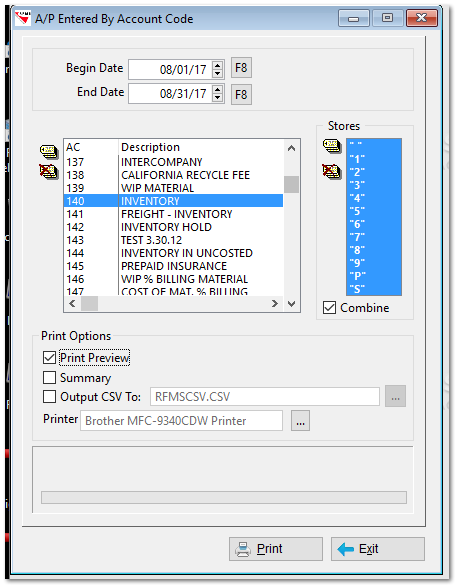
From the Accounts Payable Entered By Account Code report located in the Accounts Payable section of the Accounting Module, run the report for the time period in question. Compare this report to the total debit to the inventory debit in the journal for the corresponding period.
Comments
Article is closed for comments.