
For Billing Quantities to be allowed, the System Option “Allow Billing Quantities” must be set to yes. This system option can set to Global, Assigned or User.
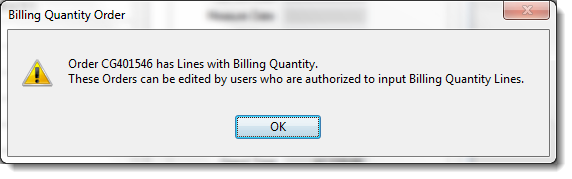
If a user who is not allowed to edit Billing Quantity Orders tries to edit a Billing Order, the user will receive the following message.
Order Entry
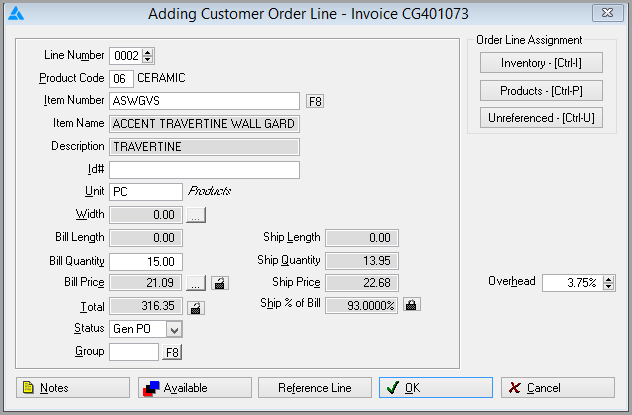
The ability to view both the Bill and Ship values on Order Line screen has been added.

The line is populated and the bill length is manually entered. If the Ship quantity is changed and then the Ship price changes to equal the Ship Quantity * Ship Price. This makes it as close to the Line Total as possible.

- The Bill Price should not be changed because this is the price expected to be seen on the Customer Invoice.
- The Allow Price Modifer system option cannot be used when using Billing and Shipping Quantity.
- Billing Quantities don't change with buying/selling quantities
Products
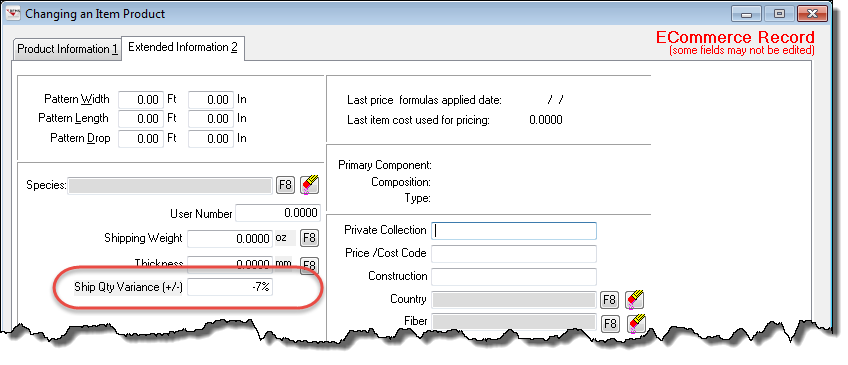
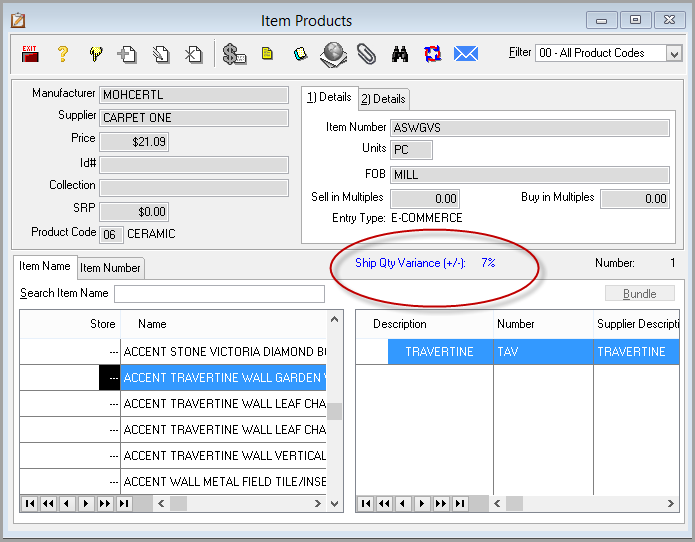
The new “Ship Qty Variance (+/-)” field in Products is used to automatically adjust Billing Quantity Line + or – 100%. %. In the example below, if the Ship Qty Variance is -7%, then the Order Line’s “Ship % of Bill” will default to 107%.
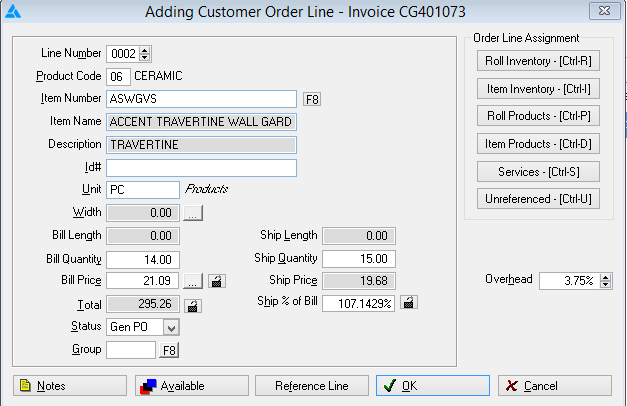
If the Ship Qty Variance is 7%, the Order Line’s “Ship % of Bill” will default to 93%.
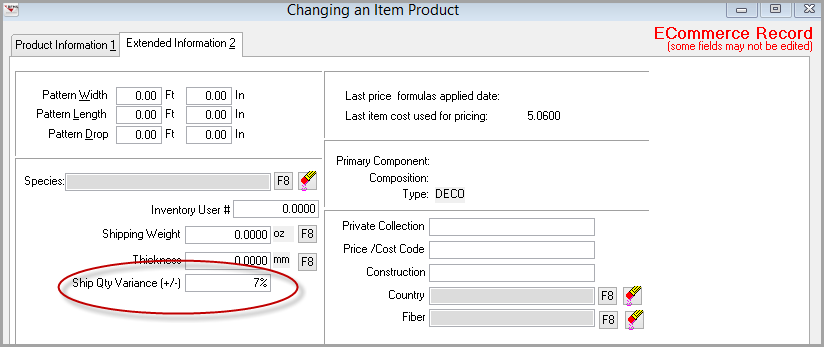
If a Product has a variance, it will also show in the BCOE Products.
When first importing into the Order Line, the Quantities are zero, so no Ship Qty % will show. Simply entering a Bill Qty will create the rest of the Line.
Inventory does not have a variance directly attached, but if the Inventory has a matching Product with a variance, it will be brought in.
BidPro
The Allowed Ship column represents Bill Quantity and the Actual Ship Column represents Ship Quantity. To set the values, click the Bill Qty button.

The Billing Quantity screen opens. If there is a variance listed in Products, it is shown in the upper right corner. Enter the Bill and Ship Quantities and click OK.
Comments
Article is closed for comments.