
Full Inventory Move User Guide
Inventory>File> (Roll or Item Inventory)
From the Roll or Inventory Browse screen, tag the records to be sent.
 To send inventory, select a roll or item and click on the blue Tag icon to flag it. Continue this process until all inventory to be sent is tagged. Click on Move button
  to display the Inventory Move Parameter screen, where you specify the store location and print a transaction report.
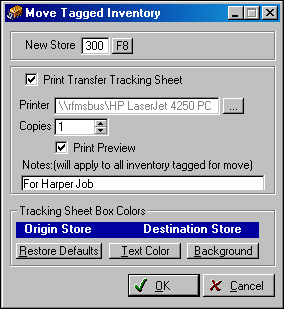
New Store
Click on the F8 button to pick the DESTINATION store code. This is where the inventory is going.
Print Transfer Tracking Sheet
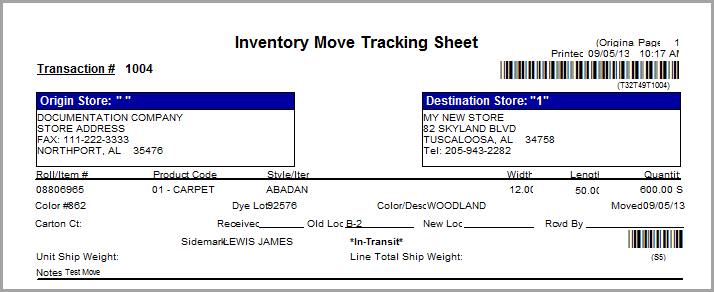
Click in this box to produce a listing of inventory that is being moved.
Printer
The default printer is shown. Click on the ellipsis button to change.
Copies
Specify the number of copies for the transaction report. You may want a copy for the warehouse.
Tracking Sheet Box Colors
Restore Default – changes the box colors back to Blue Background / White Text. Click on Text Color to change the color of the text or click on the Background button to change the solid color background.
Comments
Article is closed for comments.