
Full Billing Group and Partial Billing User Guide
Order Entry>File>Customer Orders>Billing Group >
Change Orders are regular Customer Orders with everything associated: Lines, Add Ons, Credit Memos, Overages, payments, etc. The difference is, a Change Order allows designating those orders that adjust the Contract Total (the Contract Total is the total amount of all orders within a Billing Group combined). The Original Order cannot be designated as a Change Order.
The check box is now automatically populated as a read only indicator that the highlighted invoice is a change order.

Creating a Change Order
Click the Enter Change Order Information button  .
.
Fill in all the information on the Update Change Order Request Screen.
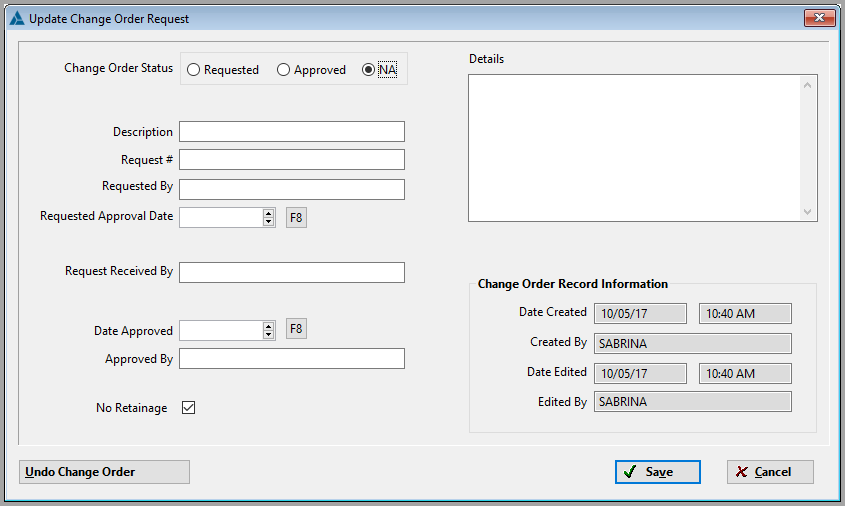
Status
Choose Requested, Approved or NA (not tracking change order information)

If not tracking information regarding the change order the status can be left at "NA" then close out of the screen. This will still track the user, date and time when the change order box was checked.
If the status is Requested, then the Change Order Icon on the Order Line will be red.

Description
Type a description (required field)
Request Number
Type a number
Requested By
Type a name (required field)
Requested Approval Date
Type a date or use F8 to select a date from the calendar
Request Received By
Type a name
Date Approved
Type a date or use F8 to select a date from the calendar
Approved By
Type a name
No Retainage
Check if retainage will not be calculated on this change order.
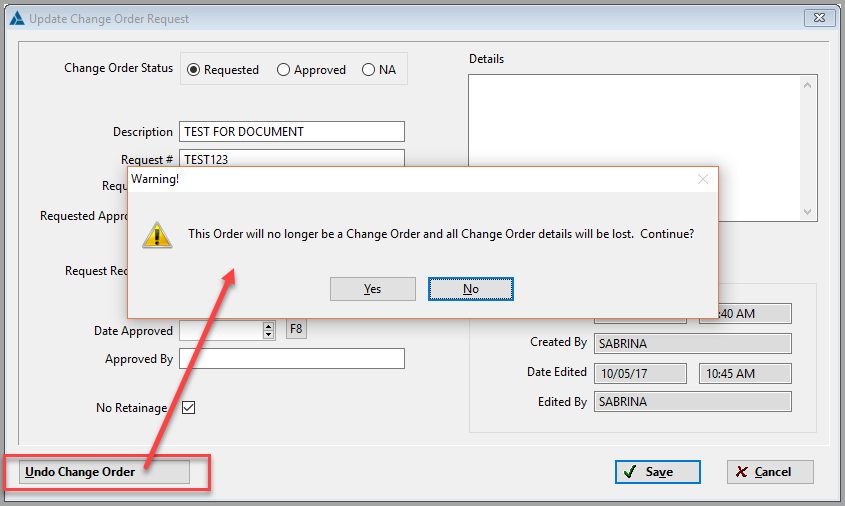
Undo Change Order
If undoing a change order, a confirmation message will appear.
Details
Type details
Comments
Article is closed for comments.