
Order Entry>File>Batch Processing or F12
The batch processing screens are similar to the customer orders browse screens.
Orders are listed when picking tickets or work orders is selected and lines are listed when Cut lines is selected. The Work Order section prints individual work orders for the selected jobs.
They will be printed by Order number. The options for the batch printing have are saved as a separate user option from the options for printing a single work order, so the two functions could have different options chosen.
Orders available for processing are ones which are for Work Orders are
- Not delivered
- Either an Original order or a Claim
 Once records are tagged, use this button to start processing.
 Use to find a specific range of records or a specific record. Another way to access the Find screen is to click the Find Tab on the left-hand side. This find works the same as the ones for Customer Orders and Quotes. The list stays when switching between processes until the batch processing screen is closed.
 Reset the browse list to include all records.
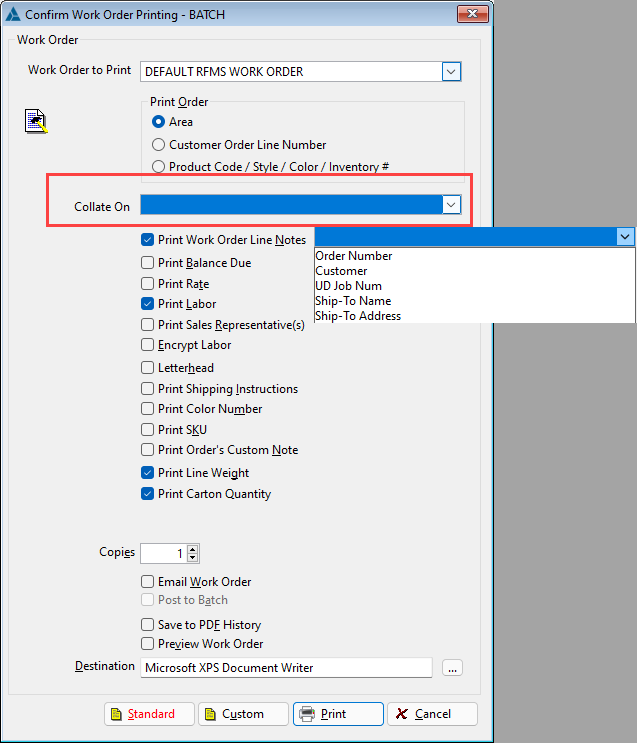
As of version 19.0 there is an option for how to collate the workorders. It defaults to blank to allow selecting before printing a batch in a predetermined order.
Comments
Article is closed for comments.