
This feature gives the ability to have a client sign an electronic document and save that signature in Order Entry.
This feature must be enabled with the system option X>Utilities>System Options>Order Entry>Inventory>Use Customer Pickup
First print a picking ticket, only lines in a cut status (or staged for ERRM) will be sent to a pick up record. These lines will be delivered as normal.
Click the Customer Pickup button  to view the pickup records. The Customer Pickup Screen will appear.
By default the records for pick up will be show.
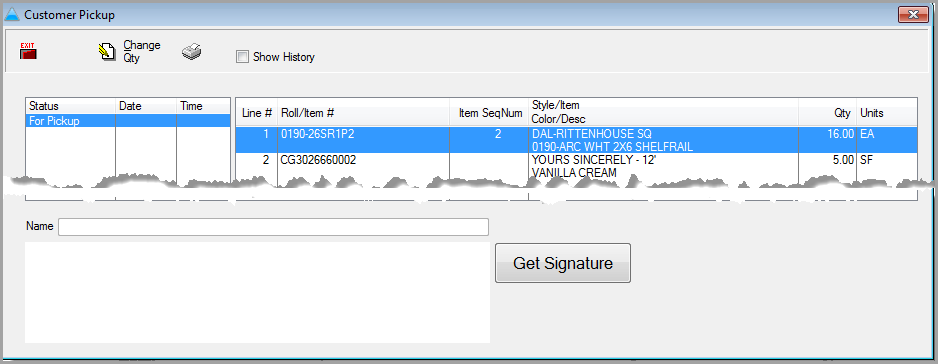

The Change Qty and Get Signature button are now password protected.
Click Get Signature. Make sure the client’s name is typed in the name box. Have the client sign the signature pad.
Click Save Signature. The signed Pickup Document will print.
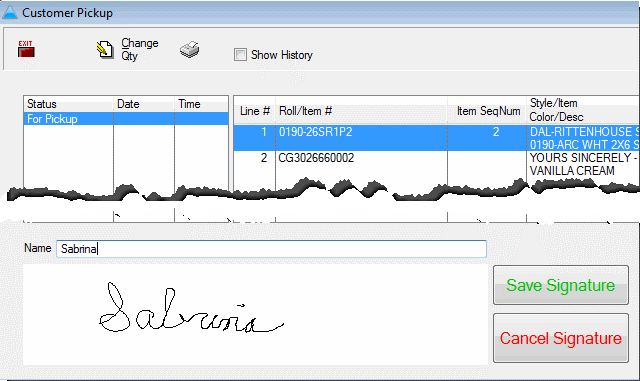
If some of the material is not going to be picked up at the time, edit the quantity down to the amount actually being picked up and complete the get signature step. A pick up record will be created and the amount not picked up will move to a “for pickup” record
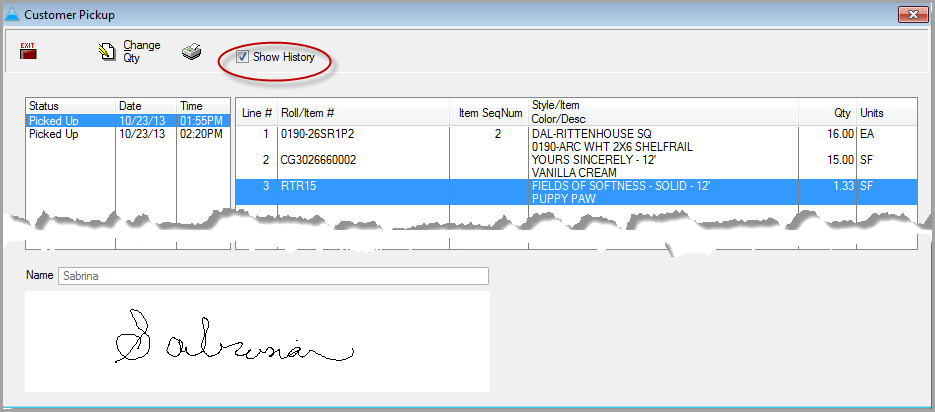
Check the Show History box to show all pickups. Highlight the pickup you would like to see and the box shows the materials and the signature for that pickup. Click the printer button to reprint the pickup document.
The Change Qty and Get Signature buttons can be password protected.
This feature is compatible with Topaz System signature pads available from many office supply vendors. Topaz file will need to be installed on each machine using the signature pad. Directions for installing these files will be included with the signature pad. Any user needing to see the signature will need to install the signature pad files to be able to view it.
Comments
Article is closed for comments.