
To send a message associated with a particular record, click the Communication Action button on the toolbar. Select Interoffice Mail.

The New Message box will appear with that record referenced in the body of the interoffice mail message. Any template remarks added will go to the top of the message.
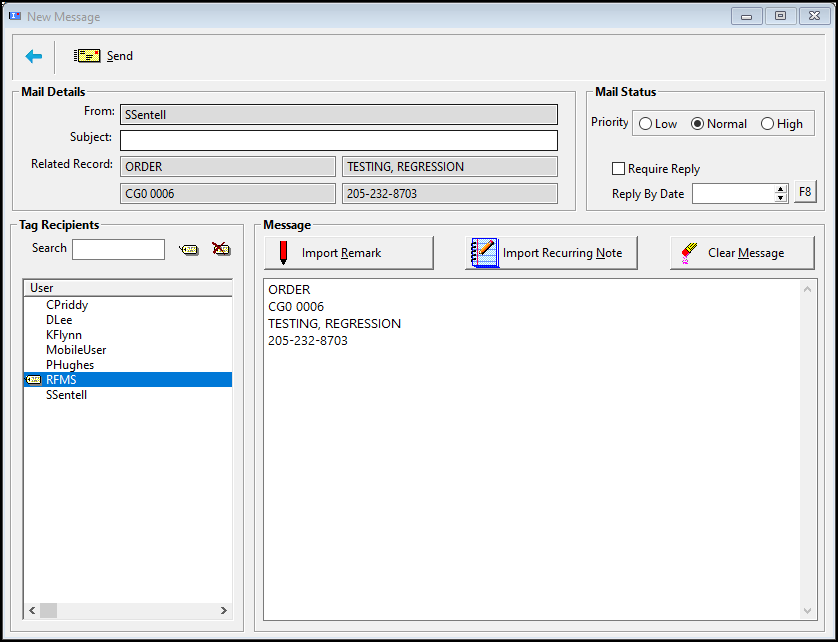

If an Interoffice Mail is marked Reply required, then it cannot be deleted out of the Inbox until a reply has been sent. A require reply by date can also be added.
Once the new message box displays from either of these methods:
· Tag the recipient(s). Tag one or more recipients.
· The From name pulls from the RFMS login information.
· Set a priority of low, normal, or high to the message and choose to require a reply.
· Enter require Reply and Reply by date if desired. The reply by date will be listed on the Mail Browse screen.
· For users with the Commercial Project Management Module, a reminder can be added to a received mail message. This reminder will show in the Client management module.
· Type into the subject field.
It is best to make the subject something that gives the view a quick idea of the topic as it will show on the list of current message.
· Message: Select a template note from the Template Remarks which are specific to the CMM or from Recurring Note file which is shared by all RFMS Modules or type a new message into the message block.
· When finished click the send button
Comments
Article is closed for comments.