
RFMS Warehouse is a module of RFMS Inventory that simplifies the receiving process by allowing employees to receive inventory in one step. It also allows making adjustments and moving locations simply.
Item Inventory Tags must use the system reference number barcode for adjustments and location changes to work.
Inventory>File>Item Inventory>Print Tag Options

Set the user as a Warehouse only user.
Inventory>Utilities>Warehouse Workstation Only
Next choose to run on the workstation or from a PDA.
RFMS Warehouse>File>Warehouse Setup.
The Setup screen will appear. Choose between "Run from Workstation “or "Run from PDA ".
Click OK to continue. These parameters are User specific.

Once the appropriate parameter has been chosen, click OK. Restart the Warehouse Module to apply any changes in setup.
Run from Workstation
Selecting this option allows viewing the Purchase Order screen in the Warehouse Module, as it would be in RFMS Inventory.
Run from PDA
Selecting this option allows viewing the PO screen on a PDA (Personal Digital Assistant). The screen is much smaller and has fewer options to simplify the receiving process.
Warehouse Options
File>Warehouse Menu

Click to select one of the options.
Warehouse Receiving
Warehouse receiving brings up a box to scan or enter the purchase order information.
Adjustments or Change Location
Inventory adjustments or Inventory Change Locations opens a box for entering the inventory sequence number manually or scanning the inventory information.
If entering any of these manually:
Purchase Order= Purchase order numberLineNumber@ (do not use # for stock purchase order numbers) example ST08539-001@
Rolls =Product CodeRoll Number example 01ZJ60643
Items = Capitol Letter ISystemReference Number I41649
Process Del. Ticket From Picking Ticket
Click above for details on this feature.
Warehouse Receiving
Warehouse>File>Special Receiving>Warehouse Receiving
This brings up the Warehouse Receiving Screen.

From this screen enter the PO number or use a barcode scanner to scan the barcode printed on the purchase order.
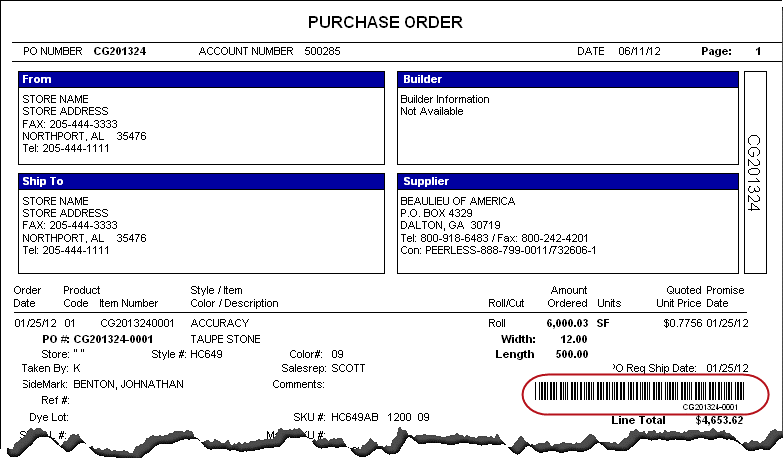
Once the PO information is entered, a receiving screen will appear. Carefully check the PO information before clicking OK to receive goods. The appearance of this screen will depend on the parameter chosen (Run from Workstation or Run from PDA).
Workstation Screen
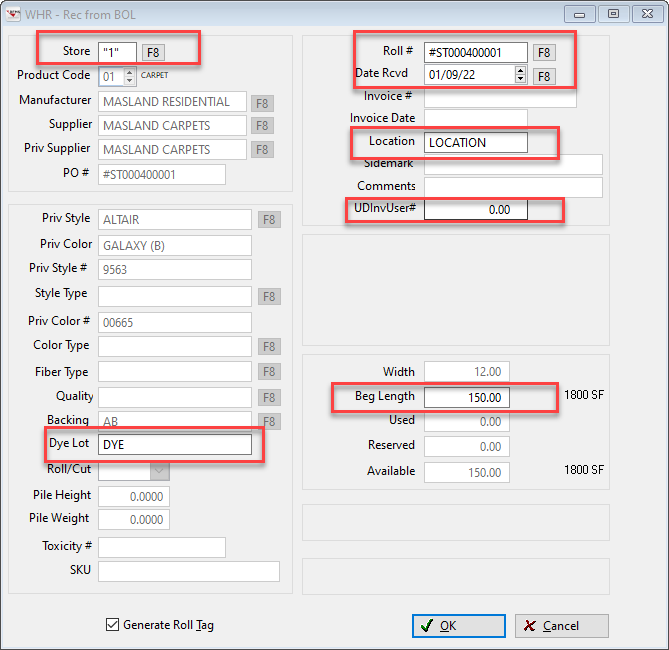
Any of the above fields that are outlined in red may be edited at this point.
Item Inventory requires a bill of lading number be entered or computer generated.
User Number
This field is numerical field and can be up to two decimal places.
No calculations or conversions for square feet versus square yards are done on this field.
One use for this field could be to track the weight of material. This field was added in version 10.5.6. The label for this field is set in >Utilities>System Options>System Wide>Inventory>User Number Prompt.
PDA Screen
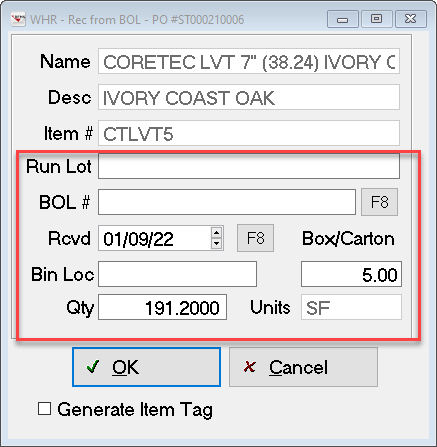
All the fields in the portions of the screen outlined in red may be edited.

The Warehouse Module DOES NOT allow to Multi-Roll Receiving.
Inventory Adjustments
RFMS Warehouse>File>Warehouse Menu>Select Inventory Adjustments
Scan the inventory barcode. The Adjustment screen displays.
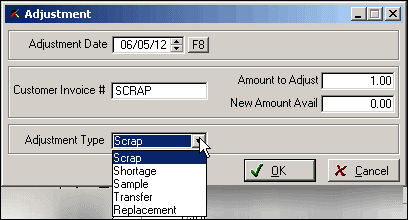
Enter the adjustment date.
Enter a customer invoice number
Enter either the amount to adjust or the new amount available.
Use the down arrow to select the adjustment type.
Click OK when done.
Inventory Change Locations
RFMS Warehouse>File>Warehouse Menu>Select Inventory Change Location
Scan the inventory barcode.
The change location screen will display. Simply type in the new location.
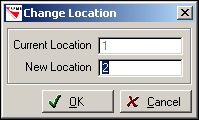
Click OK when done.
Changing Locations of R Code Items from the Warehouse Module
Process Del. Ticket From Picking Ticket
Using a Wireless Device
If Warehouse Receiving is to be completed using a wireless device, make sure that
- a fast wireless router(s) is installed an has excellent coverage throughout the warehouse.
- a RDP or terminal services is installed
- the wireless device is set to receiving mode in the Inventory module
Comments
Article is closed for comments.