
Inventory>File>Item Inventory
Highlight the item for the tag. Click on the Item Tag icon. For information on Options please click here Item Inventory Tag Options.
Click the Printer icon. This screen allows printing item tags that you specified. If you tag an inventory record and then change something in the record, you must un-tag and then re-tag that record to reflect the changes on the printed tag.
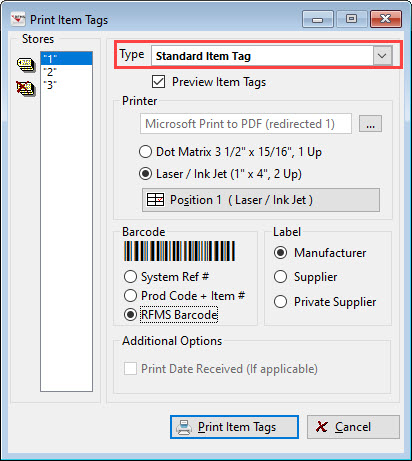
Printer criteria are as follows:
Stores to Print

Tags all store codes. This function is useful when you are first starting and want to print tags for all of your stores at once. To print a single store, do not click on the tag all icon. Instead, single click on the store code. You can tell if a store code is tagged if the background color is blue.
Standard Tag Options with Size Include:
Elegant ix 8-1/2" x 11
Item/Core tags are 1x4
4x6 Tags would be 4x6
Landscape would be 4.25 x 5
Item Tags to Print
If you have a special configuration that was done by RFMS, that file will display in the pick list. Otherwise, the default configuration will be displayed.
Preview Item Tags
Click in this box to see the tags on the screen before sending them to the printer.
Printer Selection
The printer you have set for the default printer shows. If you need to send this print job to a different printer, click on the down arrow.
Label Type
Select either dot matrix (pin-feed) or laser. The dot matrix tag is formatted to print on Avery 5161 or compatible labels.
Label Position
If you are printing to a laser or inkjet printer, you can specify the location on the label sheet of where your first good label is positioned. This feature helps to save on labels if you have a partial sheet left from a previous print job.
Label Information to Print
Select Manufacturer, Supplier or Private Supplier. The corresponding data from the field you select here will print on the label tag.
Barcode
Select either System Ref # or Product Code & Item #. This selection only applies if you use the bar coded inventory program with the Tri-coder. If Item numbers are more than 20 characters long, the system reference number must be used to be readable with a scanner.
System Ref #
This field is used for items that are unique in the system. For example, you may have rugs that are basically the same but may have different costs. In the system, you would then have more than one sequence record for each rug. When you scan your inventory, the item numbers are the same, but when you reconcile your inventory, you want each rug to be counted individually.
Product Code & Item Number
This field used for items that are not unique but share the same item number. For example, you may have ½ Rebond pad entered using one item number. You would probably then have many sequence numbers with the same item number that have different amounts available. When you scan your inventory, you probably would want all of the sequence numbers to be added up together to give you one quantity for your pad.
Comments
Article is closed for comments.