
To produce a roll tag for a roll of inventory, create a roll tag record. Create multiple roll tags and print them all at once in a batch, or you can produce a single roll tag if desired.
The roll tags will now print in roll number order.
 If an inventory record is tagged and then something in the record is changed, un-tag and then re-tag that record to reflect the changes on the printed tag.
Inventory>File>Roll Inventory
 Single Record - Highlight the desired record and click on the Tag One icon.
 All Records - Click on the Tag All icon. This method is useful when first starting and need the entire inventory tagged.
 Print the Tag - click on Printer icon to print tags for the tagged records.
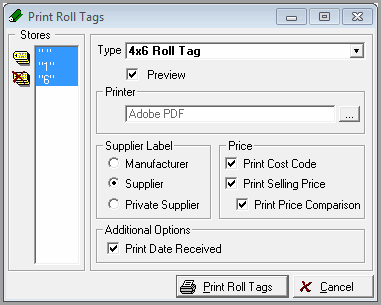
Roll Tag Options
Stores to Print
Tags all store codes. This function is useful when you are first starting and want to print tags for all of your stores at once. To print a single store, do not click on the tag all icon. Instead, single click on the store code. You can tell if a store code is tagged if the background color is blue.
Type
Select the type of printer you use to print roll tags.

The suggested printer for 4 x 6 tags is a Zebra Barcode Printer.
This is the 4x 6 tag. Actual size may vary. This is the Standard Laser Landscape (not to scale).


This is the Standard Laser Landscape tag (not to scale).

Preview Tags
Click in this box to see the tags on the screen before sending them to the printer.
Printer Selection
The printer you have set for the default printer shows. If you need to send this print job to a different printer, click on the down arrow.
Supplier Label
Select Manufacturer, Supplier or Private Supplier. The corresponding data from the field you select here will print on the tag.
Price
Print Cost - this selection will print your gross cost on the tag in a coded format. The number will be similar to this: 3459894432. This first number indicates the number of digits in the cost figure, in this example "3". The cost is then read from the even numbered digits. In this example, the cost would be $4.99.
Print Selling Price - this selection will print the selling price as entered on the inventory record. This is not the price from the products file.
Print Comparison - this selection will compute and print the price opposite of your selling price. For example, if your selling price is listed in square feet, the comparison will print the selling price in square yards.
Print Date Received
-
Checking this option will allow printing the date a roll was received into inventory.
Comments
Article is closed for comments.