
RFMS allows more than one way to post third party freight costs to an order. After the invoice is posted in Accounts Payable, perform one of the three actions listed below:
Option A - Black Arrow Method
Highlight the invoice in Accounts Payable and click the “Black Arrow” icon 

A list of open orders will appear in a pop-up window. Highlight the correct order and click the “Finger” icon 

Please note: If one freight invoice covers multiple orders, the invoice would need to be “split” first by using the Scissors icon 

The invoice can be divided multiple times to accommodate the amount of freight for each order.
This method should not include freight on the inventory record because that would cause the order to reflect the cost twice.
Option B - Add “per unit” freight cost to the inventory record(s)
Take the freight amount from the invoice and divide it by the units received in RFMS.
For example, if a freight bill is $50 and 100 sf was received on that shipment, the per unit cost of the freight would be $0.50. Highlight inventory record in RFMS, and click the pencil icon to edit the record.

Edit the freight amount to reflect the $0.50 per unit freight costs. Click OK when done.

With this method, the freight per unit from the inventory record will be assigned to the order so no black arrow is needed. If the material is returned to inventory, the freight amount will stay with the material and would therefore be assigned to any other orders this inventory is assigned.
NOTE: Editing the Freight will NOT automatically change the Net Cost field. This can be edited manually by added the per unit freight to the original Net Cost listed.
Option C – Add when costing (if invoice is available)
If the third party freight is available when supplier invoice is received, it can be entered in while costing then removed on the accounting side.
Go to Inventory > File > Receiving/Costing to cost the invoice. Add the third party freight in the upper right corner.

Cost the inventory as you normally would.
After the AP icon  is clicked to create the payable, remove the freight information in both Non Discountable (on top) and G/L Distribution (on bottom) then click OK.

Once again, the freight per unit from the inventory record will be assigned to the order so no black arrow is needed.
If the material is returned to inventory, the freight amount will stay with the material and would therefore be assigned to any other orders this inventory is assigned to.
Option D – Add as a Service PO
Freight invoices can be costed to an order when entered as a service. Begin by adding a freight line to an order and then, place the line in a GenPO status.
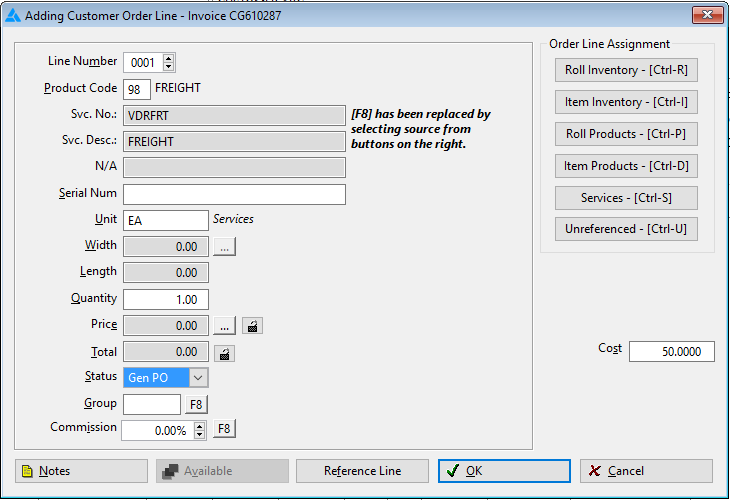
A Purchase order can be created though Order Entry or through Inventory just as a purchase order for inventory is created.
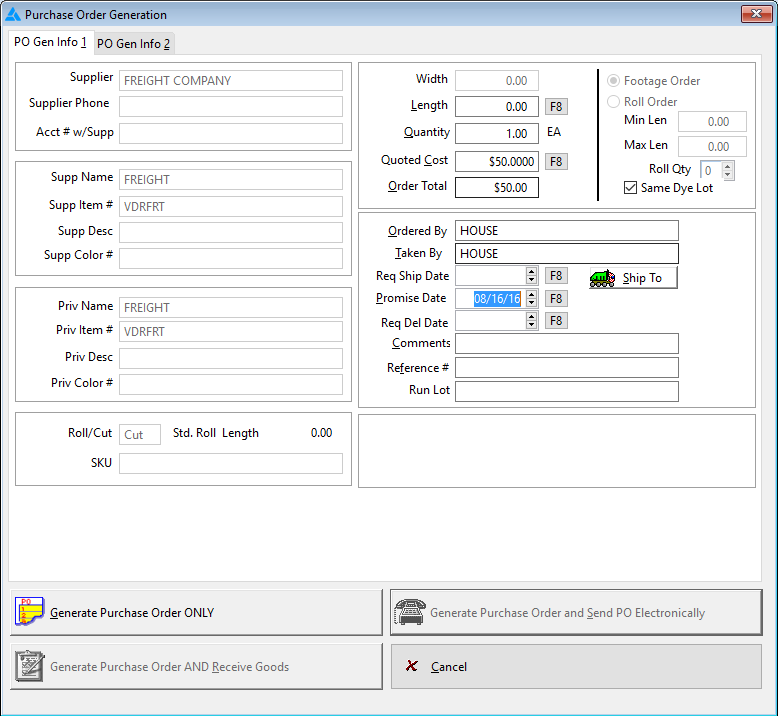
Go to Inventory > File > Special Receiving > Costing Service.
Enter the following payable information to the header of the Costing / Receiving window: Supplier, Invoice Number, Freight Account Code, Invoice Date, Due Date, Discount Rate (if applicable). Don't forget to check the box to Post Providers.
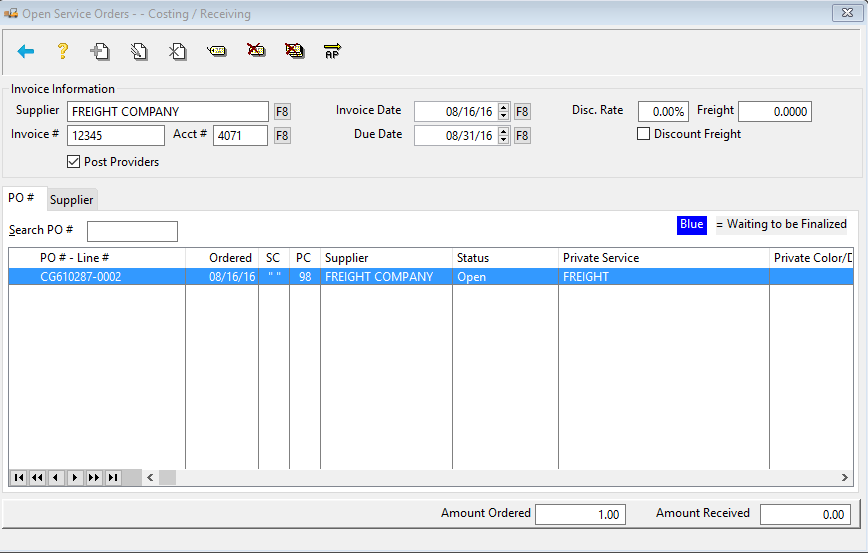
Tag the correct line to cost the freight.

A new window appears. Confirm the information on the screen and click OK.

Click to send the invoice to AP .
Post the invoice to Accounts Payable by clicking OK.

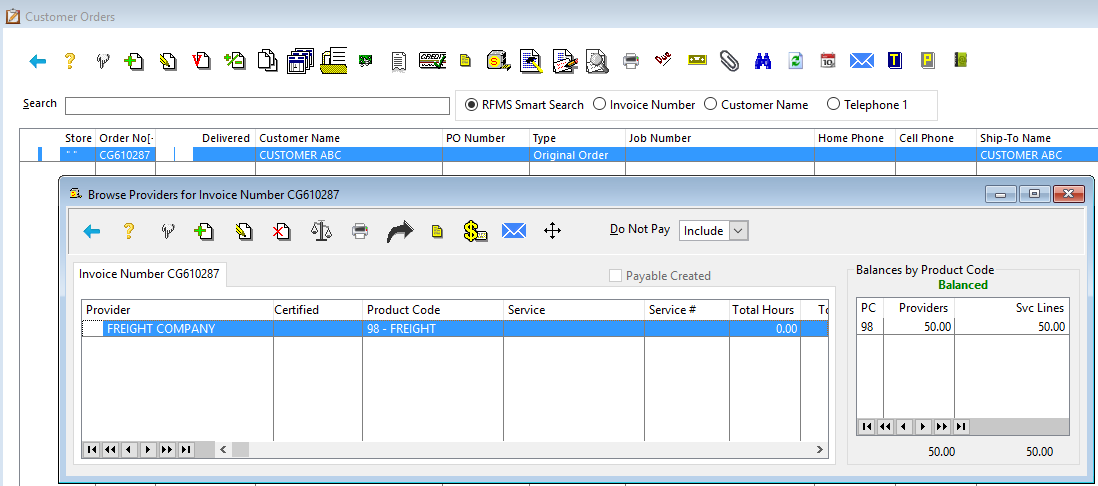
The cost associated with the freight is recorded as a service in the provider window the order.
This method should not be used if it is a Cash and Carry sale in a Use Tax city/store.
Comments
Please sign in to leave a comment.