
Style/Item Name
If scanned or selected from established files (inventory, products, etc.) this field will be automatically completed. Otherwise, type in the style or item name.
Color/Description
If scanned or selected from established files (inventory, products, etc.) this field will be automatically completed. Otherwise, type in the color or description.
ID/Serial Number
This field is user-definable and can be set in >Utilities>System Options>System Wide>Inventory>Serial Number Prompt. Editing this field in Order Entry is allowed.
Width
The width can be changed only if entering an Unreferenced Line or if the product information has been exported from the products file and the products record does not contain a width. If the information was exported from the Products or Inventory file, the standard width will always be placed in this field. If a product does not have a width entered, the width on the customer order line will default to 12.
Length
Enter the length in square feet, including decimal amounts if necessary. A conversion box will appear if the decimal amount entered is not a good representation for the inch conversion. Skip this entry to enter the sale in square yards (quantity). If the information was exported from the Products file, the standard length will appear right under the Length field.
Quantity
If the length was not entered, enter the amount sold in square yards. The length will be calculated by the system. Entering a quantity will always override whatever was entered as the length.

When entering or editing Service Lines for a customer order it is now possible to edit the Unit field. The unit field is currently defaulted to square yards (SY).
Billing Quantity
Billing Quantity is used for situations when the amount of material on the customer order is different from what is actually used.
In order to begin using "Billing Quantity” first set the option that enable it. Setting >Utilities>System Options>Order Entry>Order Entry>Allow Billing Quantity to yes will allow utilizing the Billing Quantity feature.
When using this feature, note the Billing Quantity must be designated on each line separately. Also note that when printing an invoice, the Billing Quantity will be displayed-NOT the line quantity. No special invoice configuration is needed.
When using the Billing Quantity feature, the Quantity will appear in red.
One good use of this feature is when a roll balance is purchased for an order; the customer is only billed for the amount they purchased. The full amount of the roll balance is entered on the order so there’s not a small amount left in inventory.
Sell To Quantity on Products
If a sell to quantity is entered on the products record and that product is selected on a customer order line, note the following: if the line quantity is not evenly divisible by the sell to quantity, a warning window will display showing the quantity will be rounded up to the next evenly divisible quantity. The warning has an Override button that can be password protected.
Price
The price is imported from the products or inventory record. If the price is zero or the price needs to be changed for this sale, click the Price button. An authorization code must be entered to change prices. If the product is found in the Products file, a pick list box will appear that displays the six available prices. Select a price from this pick list, if the prices have been set up. Change the unit price or the line total. The standard price (as entered using the six pricing formulas) will be used for each line. If the selling price on the line is changed to something other than the standard price, that new price will go back to the original standard price if you re-select the inventory record. If you do select different inventory for the line, be sure to change the selling price again.
Total
This is the extended amount for the line. Quantity or length times price.
Status
If pricing information is used for the line, the default status will be none. However, if the Auto PO Generation feature in RFMS purchase orders is used, toggle the status to Generate PO. A record will be created in the Auto PO section of RFMS, waiting to be ordered.
A status of reserve or none is used when the product that has been sold is either not in stock or is not being removed from the store.
A status of On Order indicates that the product has been ordered through the purchase order module.
If the product is being taken from inventory immediately, the line is immediately placed in a cut status. The lines must be in a CUT status in order for the order to be job costed.
Products selected from the roll or item inventory and given a status of NONE will remain in that status until you edit the line again. At that time, the opportunity to "Cut" or "Reserve" the inventory will be given without having to re-select the inventory.
Overhead Margin Base
Overhead Margin can be adjusted per line. The default overhead margin will populate field unless a change is made.
This option depends on the Enable Overhead Margin Percent by Order Line system option.
Group
See Line Groups for Details
Reference Line 
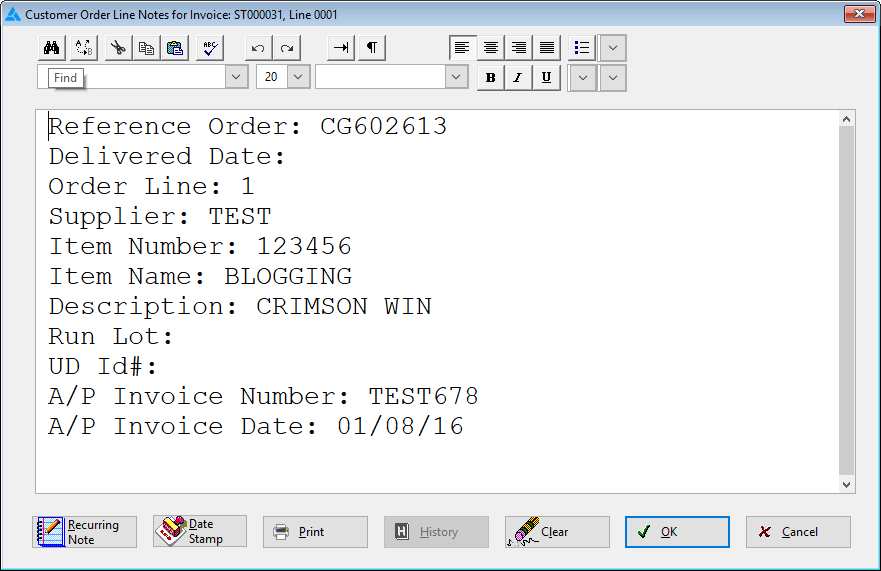
When adding a line, a line on a previous order can be referenced. This is useful for service calls on items under warranty or for claims repair. Click the reference line button to search order entry and pick the line from the previous order. A line note is then created giving the information about the referenced line.
Line Number
This number is assigned by the system and is automatically incremented when additional lines are added.
Item Sequence
This number is assigned by the system to records from the item inventory file. Because you may have more than one item inventory record for the same item number, the sequence number is necessary to track each one.
Use Tax Line
If the Store Code or matching City is set up as a "Line Tax" configuration, this option appears on the line. Click inside the box to specify that this line should be considered a Use Tax line and not a sales tax line. That means that the tax rate percentages and base will be calculated for this line only. The Use Tax Line feature gives you the flexibility to have "mixed" tax situations for a single customer order.
Dye/Run Lot
This filed is where the Dye/Run Lot is pulled over for the product.
Net Cost
This field is the net cost from the inventory or products record. The option >Utilities>System Options>Order Entry>Order Entry>Display Costs in Orders and Inventory, also Display GP% in Orders must be set to yes to view costs on lines.
If the product is an item or if square foot calculations is used, the net and gross costs will display using three decimal places.
Gross Cost
This field is the net cost from the inventory or products record an option must be set to view costs on lines. Do that in >Utilities>System Options>Order Entry>Order Entry>Display Costs in Orders and Inventory, also Display GP% in Orders.
Note for Roll Products:
If a line is entered with a roll product and the length sold exceeds the standard length (as entered on the Products record), the roll gross and net cost will display on the customer order line. The line must have a status of GEN PO for this to work.
Gross Profit Percent per Order Line
This feature displays the gross profit for a customer order line the same way it would appear on a job cost sheet. The calculation considers the Overhead Margin (either as entered in Utilities>System Options>System Wide>Order Entry>Standard Overhead Margin Set Up or on the line if >Utilities>System Options>Order Entry>Order Entry> Enable Overhead Margin Percent by Order Line is set to yes.) and the tax method (Use Tax. To activate this feature set the option >Utilities>System Options>Order Entry>Order Entry>Display Costs in Orders and Inventory, also Display GP% in Orders to yes. The feature is user specific. Clicking the Right Arrow button to scroll over to the field may be necessary.
Comments
Article is closed for comments.