
The feature can also be used to narrow the list on the Customer Orders Browse Screen. From the Browse screen click the Find button  .
.

Stores
- This list of stores is limited to those designated for this workstation in >Utilities>System Options>Order Entry>Order Entry>Order Stores Visible to User
- The green check indicates the default Store.
- The red “X” indicates an inactive Store.
- If the only Store available to this workstation is the Default Store, the list will be disabled.
- At least one Store must be designated to be able to filter.
Remark Type
Remarks are notations about a record from the Client Management Module. These are called remarks to differentiate them from the notes in RFMS. Remarks can be given a specific type as a way to categorize them. Customer Orders and Quotes can now be filtered according to their remark types.
Marketing Fields
Ad Source etc. the labels for these fields are set in Utilities>System Options>Order Entry>Order Entry> (Contract Type Prompt or Order Type Prompt or Service Type Prompt).
Filter Dates
- To use one of the filter dates, enable it by checking the appropriate box, i.e. “Use Order Date”
- “From” date cannot be before “To” date
- Any combination of filter dates is permissible
- “Delivery Date Options” and filter by Delivery Date cannot be both used in the same filter. Either one or the other may be used.
Enter search parameters and click OK. Upon doing so, all customer orders that fit the parameters selected will display on the Customer Order Browse Screen.

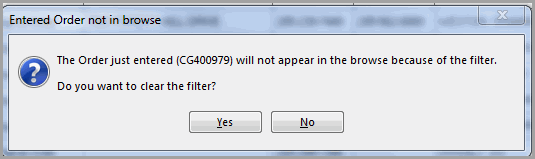
If a newly entered Order will not appear in the browse because of the filter settings, the following message will appear.
All Lines Delivered (available if "Delivery Date Options" is Undelivered Only”
This switch is available if “Delivery Date Options” is “Undelivered Only.”
Save and Load
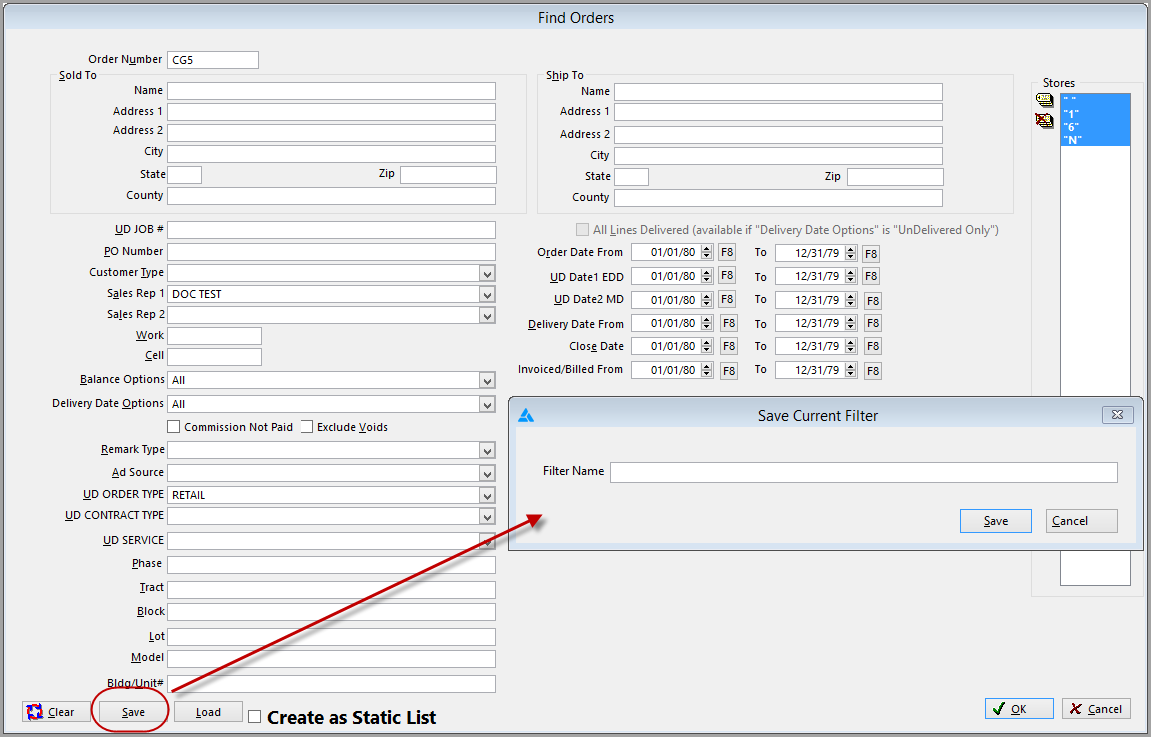
The option to save a Find has been added.
Make all the choices on the Find screen.
Click Save and the Save Current Filter screen opens. Type in a File Name.
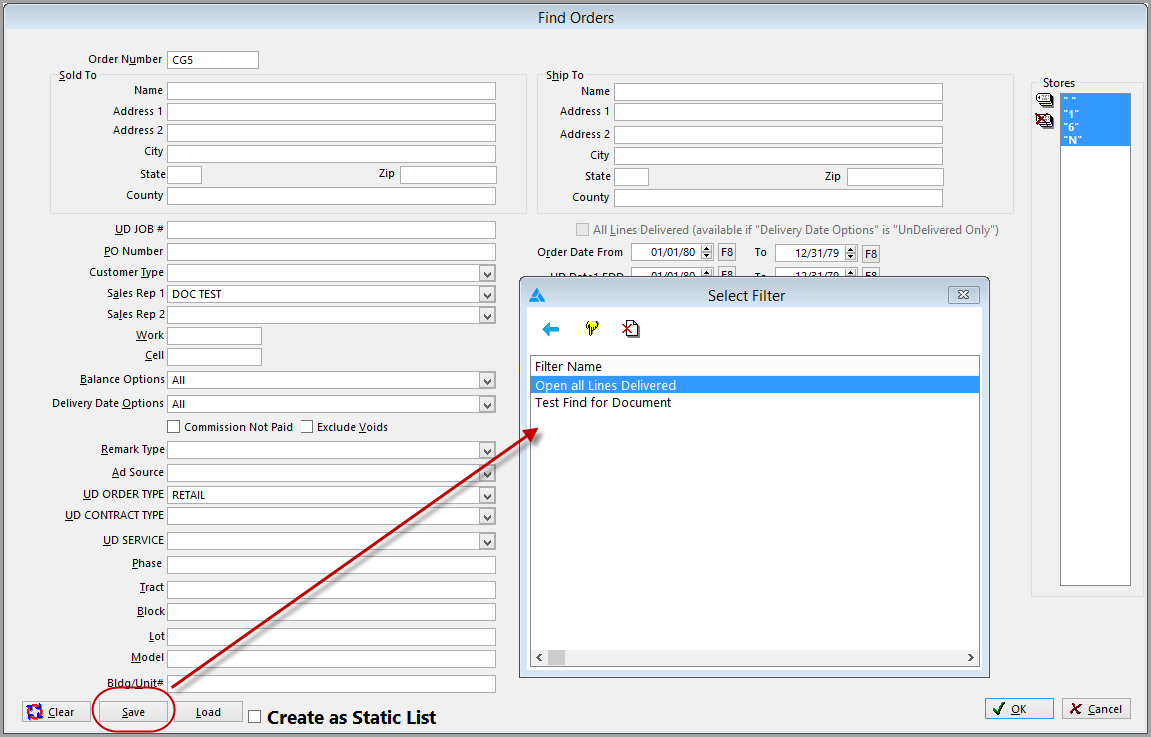
Once a Find has been saved it can be loaded.
Click Load.
The Select Filter screen opens. Highlight the filter and click the Select button  .
.
Comments
Article is closed for comments.