
FULL PROVIDER RATE MATRIX USER GUIDE
Accounting>File>Human Resources>Utilities>Provider Rates Matrix
This menu item is not available until enabled with the system option Enable Provider Rate Matrix is selected. This matrix can be as simple or complex as needed for a particular business.

The top section of this screen is for searching for rates from the browse list once they have been created.
 use to create a new rate record
 use to copy the highlighted rate record as the basis for creating the new rate record
 use to change the highlighted record

Rate Type
General: not restricted to certified or union.
Certified Payroll: these will be the default rates listed when selecting a rate for a certified payroll job
Union Payroll: these will be the default rates listed when selecting a rate for a union job
Rate Description
This will show on the Providers Rates Matrix Browse list. Rates can be sorted by this column.
Rate Inactive
Check this box to not allow this rate to be selected in the future
Use the left side of the rate record to set up the rate information:

Rate Details
Rate Unit
Not available until a future update
Base Unit Rate
Enter the monetary rate
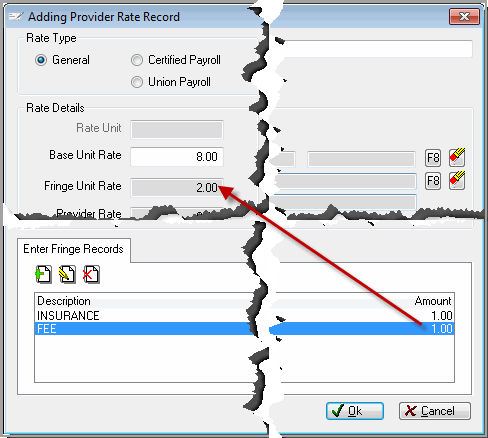
Fringe Unit Rate
The amount for the fringe unit rate can be entered here manually or calculated by adding individual fringe records into the fringe list. The fringe unit rate will only add to the provider rate if the fringe pay type is cash.
Provider Rate
Total of all rates, this is the amount which will be used when selecting the rate for a provider record. Either Base or Base + Fringe.
Overtime, Double-time and Misc. Earnings
Overtime Multiplier
Enter the number to use for calculating the overtime rate
Double-time Multiplier
Enter the number to use for calculating the double-time rate
For Certified these are hard coded to be 1.5 and 2.
Multiply Fringe
Only available if fringe paid in cash. Check these boxes to include the fringe rate in calculations of overtime and double-time.
Misc. Earnings
Enter a monetary value to be added to the earnings total. This will populate the misc. earnings field on the provider record.
Fringe Pay Type
Cash
Select this if cash is paid in lieu of fringe benefits
Plans
With this selected the fringe amounts will not add to the pay rate. A choice of plan types is necessary for reporting certified payroll. (Approved Plan or Unapproved plan)
Adding Fringe Records
By adding individual fringe records here the total fringe rate can be calculated. Using this list will disable manually entering a fringe unit rate.
Use the right side to make the rate selections more specific:

Store
Leave blank to use the rate for all stores.
Provider Name
These are limited to records marked as provider in Worker Information.
Skill Level
Use F8 to select a skill level from the list created in Accounting>File>Human Resources>Utilities>>Skill Level
(Seniority and Wage Determination # will be enabled in a future update.)
Product Code: A rate can apply to all services in a product code if a selection is made for only this field
Service
A rate can apply to a specific service if a selection is made for this field.
Using F8 to pull in a specific service will automatically fill in the Product Code. If there is already a load on the service record, it will be populated.
If a service exists on the rate record which has a load then the provider load will be set to the matrix service load, when the method for posting load = Set Order Line Load to Provider Load.
Customer Type, Sold To City, Sold To Zip Code, and Sold To State
These fields can be used to further specify how the rate applies.
Comments
Article is closed for comments.