
Utilities>Project Manger Set Up>Email Templates
For standard email messages sent on a regular basis. Templates can be used both in RFMS and Project Manager.
Note: Project Manager is required to create templates.
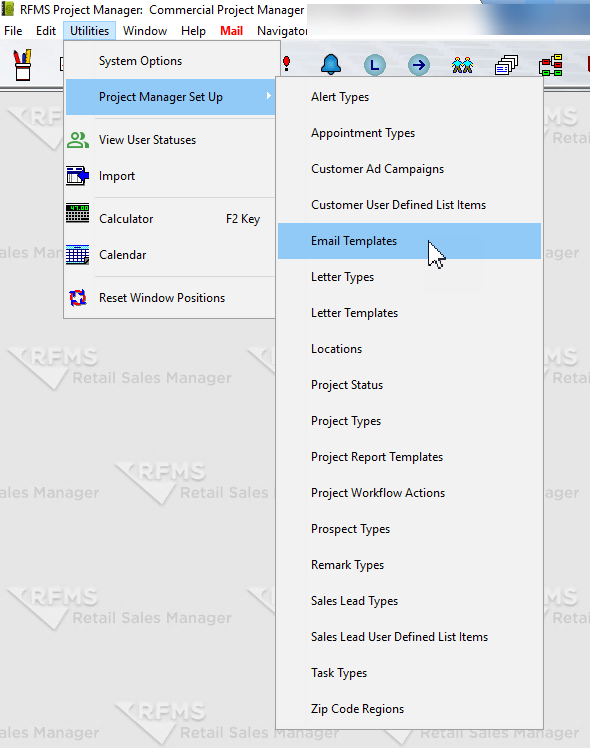
Click the Email Templates, and the Email template browse screen displays.

Click the insert or edit button. The email template screen displays.
The Template Type is a required field. Click F8 to select or add a type.

Next, Type in a description.
The record information on the template and template type will be automatically generated by the system.
Check the inactive box on the template and template type to save for future use, but have it not show on the template pick list when sending emails.
The signature and blind carbon copy on the email will be pulled from the private “configure email” settings. An additional blind carbon copy can be set for this template.
Type in a message to be sent each time the template is used. This message can be edited or added to when emails are sent.
Subject is the subject line of each email created using the template.
Attachment is the attached file that will be sent with each email created using the template.
Comments
Article is closed for comments.