
If a credit card is swiped, the information is sent on to the Card Processor. This is considered a "Card Present" transaction. If the credit card is not swiped and the credit card information is manually entered into the reference section, the following screen will appear. This is considered a "Card not Present" transaction.
How To: |
|
|---|---|
1. Go to Order Entry>File>Customer Orders>Post a Payment Button  |
|
|
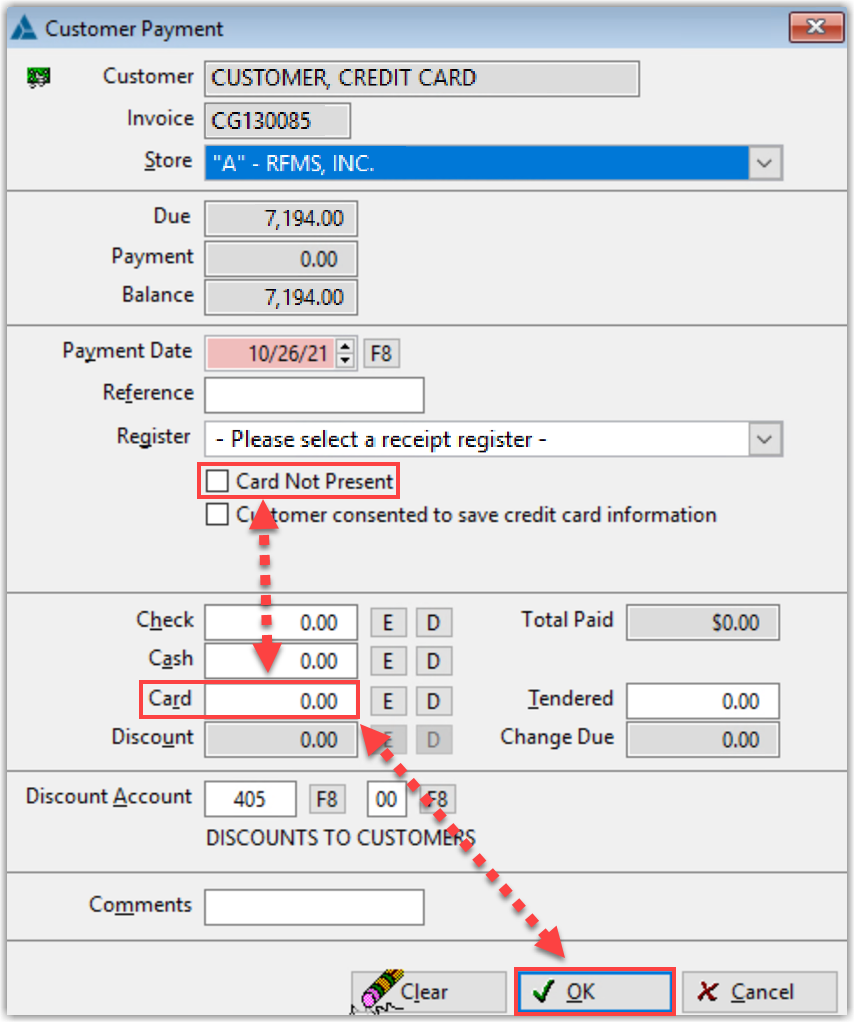
2. Check the option for Card Not Present, enter the amount in the box labeled Card, and click OK Tip: Skip the register select option |
 |
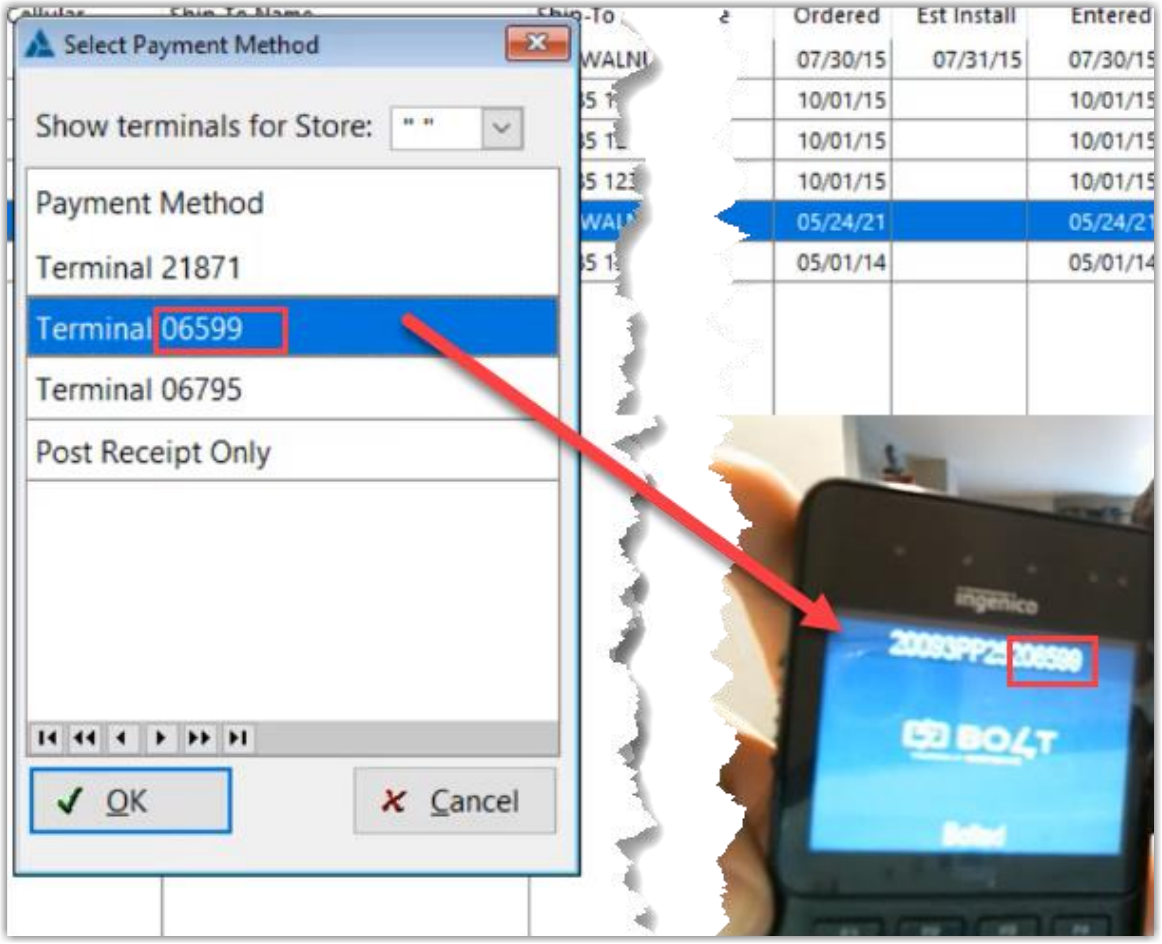
| 3. Select the terminal to use from the box that comes up and click OK |
Tip: The last 4 digits of the terminal are shown on the select screen
|
| 4. Follow the prompts on the terminal to enter the card information manually and complete the transaction | |
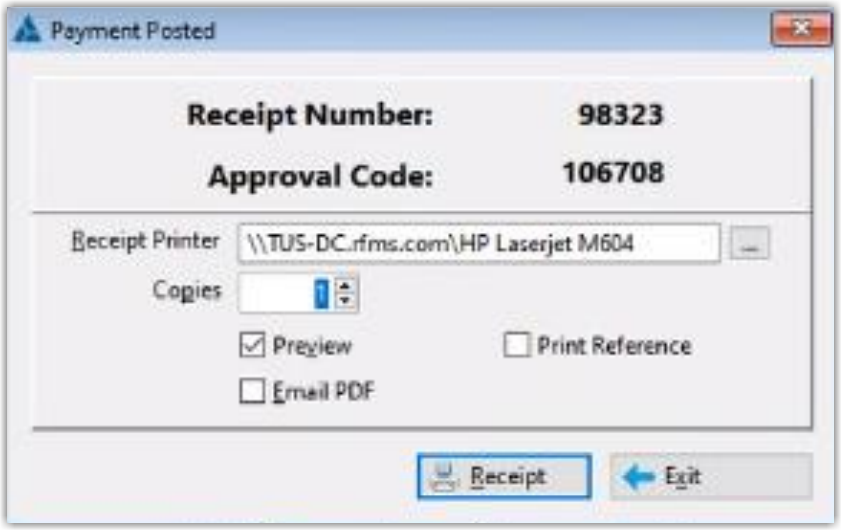
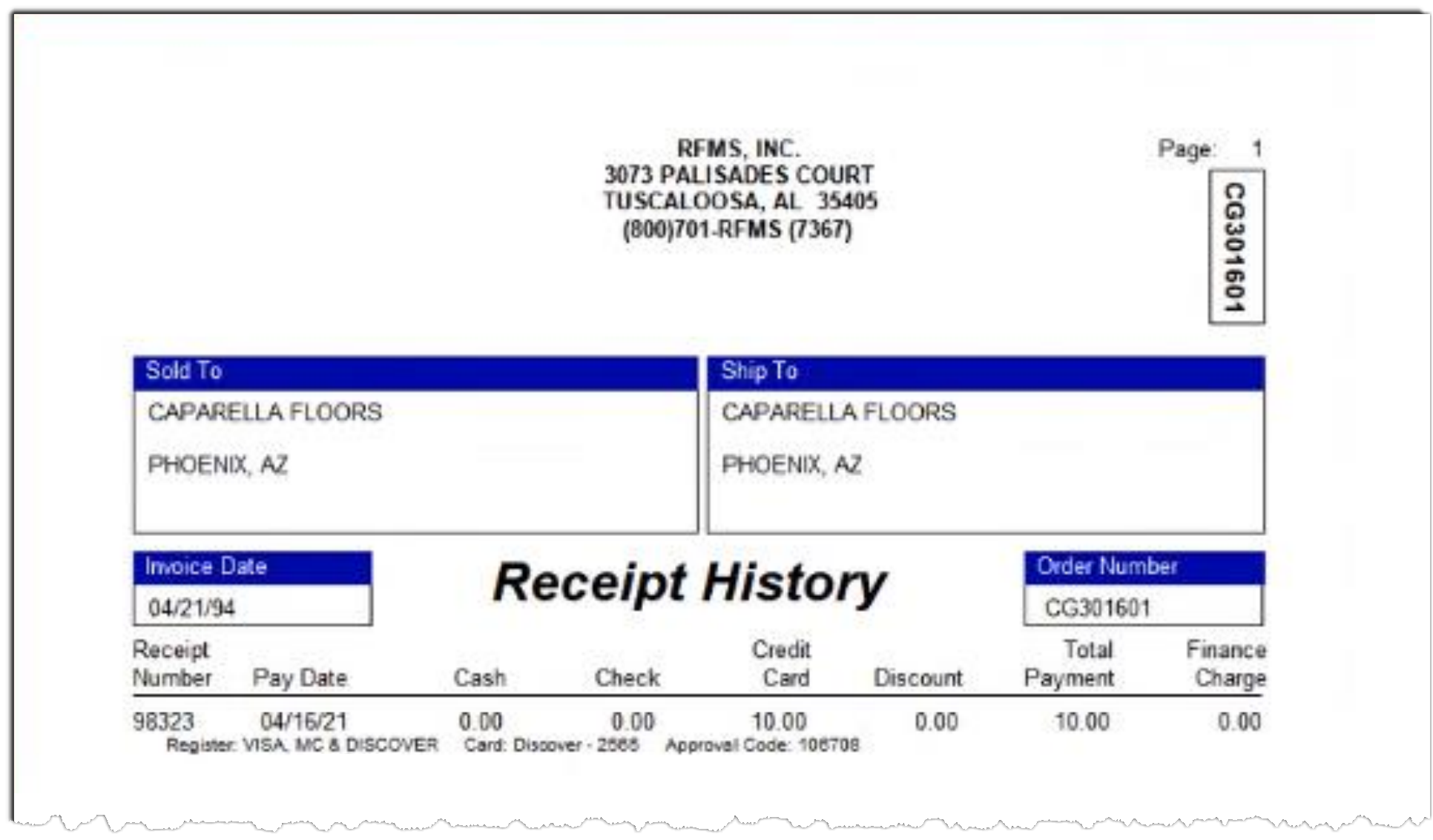
| 5. Payment is then posted and receipt info is displayed including the approval code. |
|
Video Tutorial
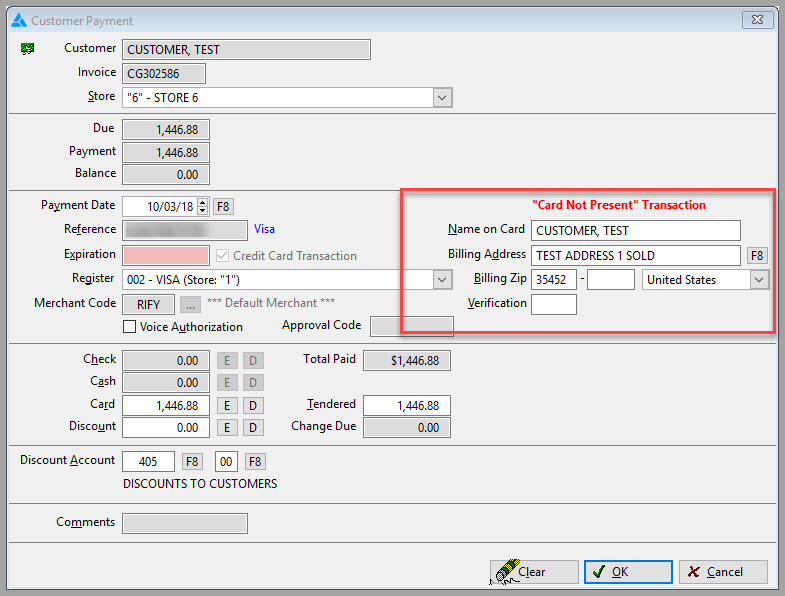
Before moving on, the name on the card, a valid billing address, along with a zip code and card verification number should be entered.
If the system does not detect a numerical street address, it warns the user and then allows the user to enter one or continue without entering one.
The Verification number may be required by checking the box in Order Entry>Utilities>Credit Card Set up.
Comments
Article is closed for comments.