
Inventory>File>Receiving and Costing>Receiving from Invoice
Enter the Supplier name by clicking F8.
Enter the Invoice number. The invoice date will default to today’s date.
The typical term days and discount rate will be pulled from the supplier record.
Enter freight if applicable and check if it is discountable.
Click the insert  .
.
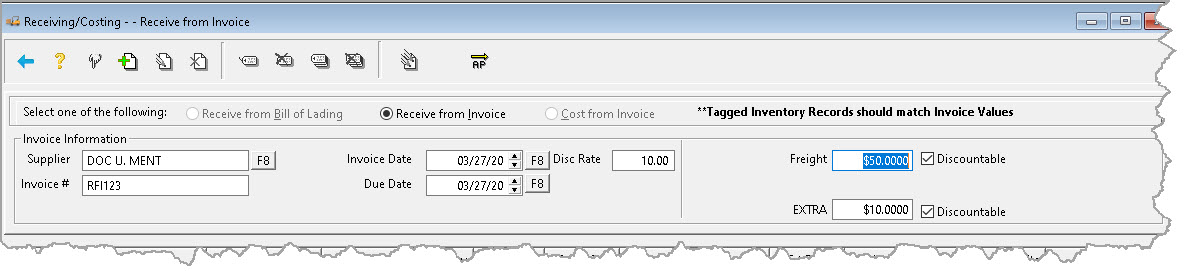
The Receive from Invoice screen opens.

The following choices are available:
Enter Lines from a Purchase Order
Select this option for an open purchase order for the inventory being received, or click F8 for a listing of all open purchase orders. With a scanner and purchase order with printed the bar codes, that barcode can be scanned into this field.

If a dash is used in the PO or CG number then you must F8 to pull the number in when receiving.
Search for the PO you are looking for by using RFMS Smart Search or Find  .
.

This list is used when receiving inventory that was entered on a purchase order. All information from the open purchase order will be copied into the inventory record.
To select a purchase order line from the list, double-click, or use the tag button  . If there is more than one line on the purchase order, select the tagall button
  to export all lines over to the receiving-costing screen.
- Blue Lines display Purchase Orders that have previously been selected for Receiving.
- When importing the open purchase orders, the tag all button only tags all of the related purchase order lines (same PO number).
Enter without PO
Select this option if there is no existing purchase order for this material.

Click the Enter without PO selection. Select either roll for carpet or vinyl or Item for all other inventory. Click OK to continue.
In the middle of the screen, a new record with a roll or item number as "NEW ROLL" or NEW ITEM (if entering without a PO) will display.
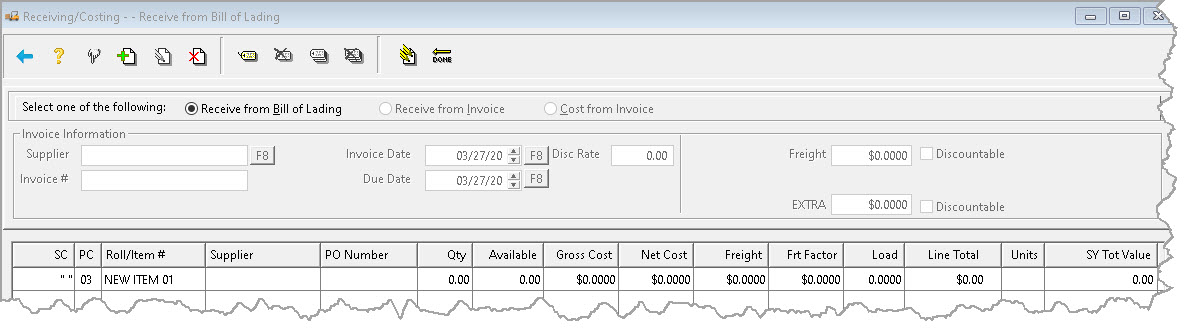
Click the Tag button. This displays the screen where detailed information about this inventory will be entered.
Pull information by using the F8 buttons beside each field.
If using unreferenced lines, information can be entered manually. THIS IS NOT A RECOMMENDED BEST PRACTICE BY RFMS.
Important Steps to do each time
- In the Roll or Item number field, change the computer-generated number to the actual number as shown on the bill of lading.
- Confirm the amount being received. When receiving inventory, the quantity received can be edited as long as it is not edited to an amount less than the quantity used + quantity reserved against the on-order record.
- Click the C button next to the Unit Price. This selection allows you to assign a selling price using the Price Calculator.
Click OK to save.

Comments
Article is closed for comments.