
Important: Use the Return/Found Inventory utility only for special inventory situations
Use Return/Found Inventory only when material cannot be returned through an existing customer order. This utility adds inventory back into RFMS without creating or posting an Accounts Payable invoice.
This routine is meant for special cases, such as material returned from work that was not processed through RFMS Customer Orders, or inventory found in the warehouse when the original source is unknown. If a customer is returning material from an RFMS customer order, see How To Return Inventory From a Customer Order.
When to use Return/Found Inventory
Use Return/Found Inventory when the material was not sold through an RFMS customer order, or when the original source of the inventory cannot be identified.
Because this utility adds inventory outside the normal customer order and payable workflow, it should be used only when it matches the business situation. In most cases, that means the material needs to be added back into stock, but there is no customer order or payable transaction available to process the return.
Before You Begin
Returns can only be entered into an open General Ledger period.
When the return is processed, RFMS automatically posts the correct amount to the following accounts:
- Cost of Goods Sold as a credit
- Inventory as a debit
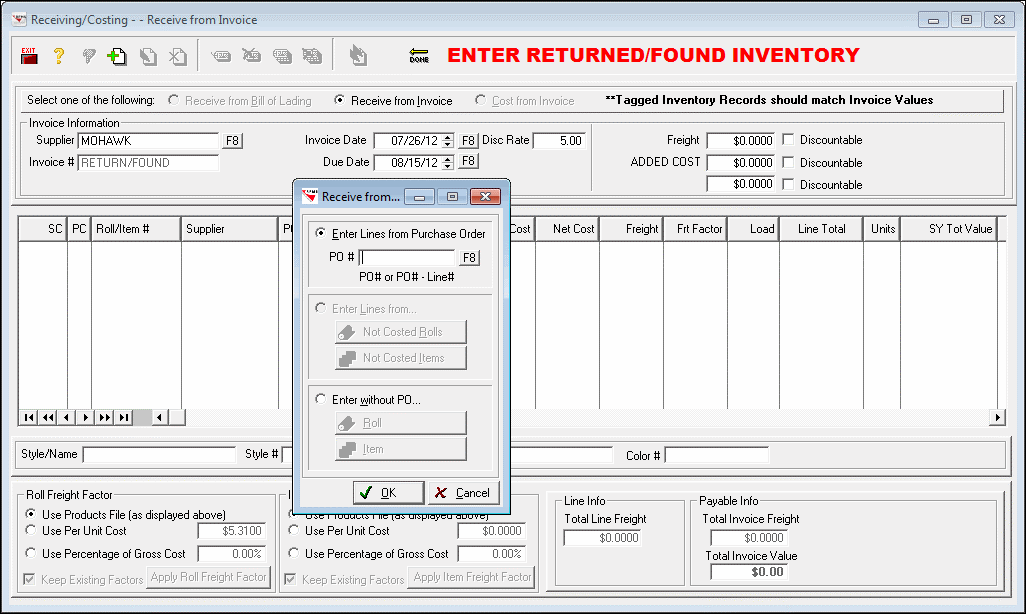
- The invoice number for the entry is set to RETURN/FOUND.
This routine may require a password. Initially, it is set with a Level 1 password.
How to Use this Utility
Go to Inventory > Utilities > Return/Found Inventory.
If you do not see this option, your RFMS user may not have access to the utility. Contact your RFMS administrator or manager to confirm whether you should have permission.
- Open Return/Found Inventory and click Insert,
.
- In the Receive from window, enter the PO number or PO number and line number when the material can be matched to an original purchase record.
- After the correct line is found, add it to the entry and enter the quantity being returned to inventory.
- Review the line details carefully, including quantity, cost, and invoice values, before continuing. If you need to enter more than one line, repeat the process for each item.
- When all lines have been entered and reviewed, complete the transaction using the Done button.
Comments
Article is closed for comments.