
Claims User Guide
When the mill credit invoice is received, the invoice needs to be posted to the corresponding Claim record taking care of the balance on the Claim.
Steps to Processing
1. Highlight the claim record that is associated with the Mill/Supplier credit.

2. Click the Post Mill Credit button 
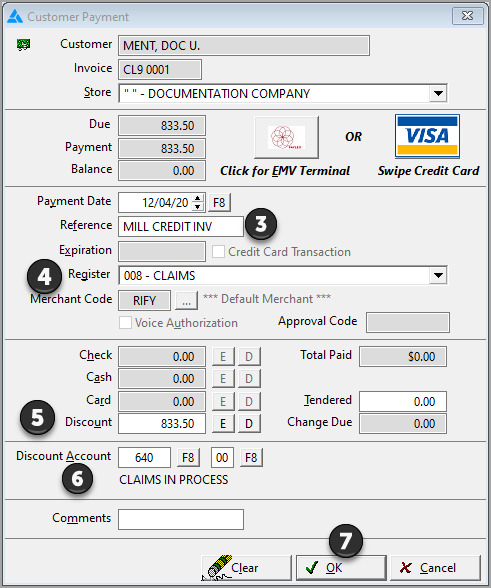
3. The Customer Payment screen appears. Enter the mill credit invoice number in the Reference field.
4. Select the receipt register used for Claims.
5. Click the E (Entire) button next to the Discount field to pull in the total amount of the claims If the amount is not correct, enter the actual amount on the invoice.
6. The discount general ledger account code entered as a standard account for Claims in Process will be the default account.
7. Click OK to save the posting. This posting affects the balance due on the Claims record.
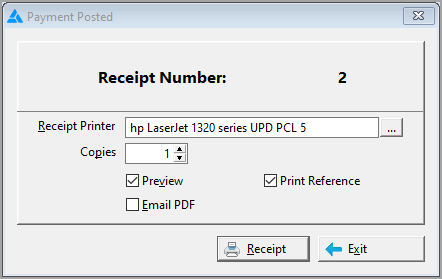
8. The Payment Posted screen opens. Click the Print Receipt button to print. To continue without printing, click the Exit button.
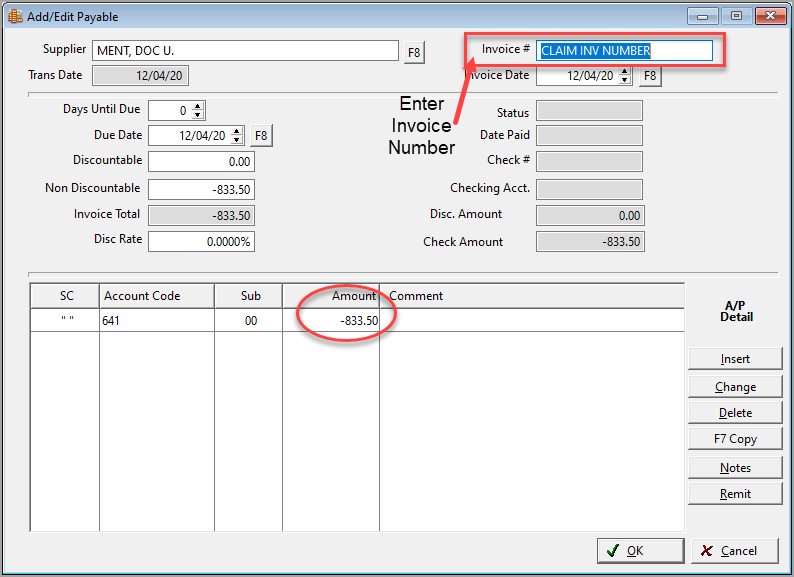
9. The Add/Edit Payable screen opens containing the payment amount, which is filled in as negatives taking care of the second part of the mill credit process. If needed, change the supplier name. Enter the Invoice Number in the correct field. Click OK.
Comments
Article is closed for comments.