
ISSUE:
- User gets a "Stopped Working" error while working in RFMS
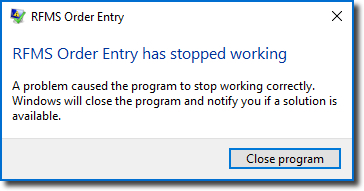
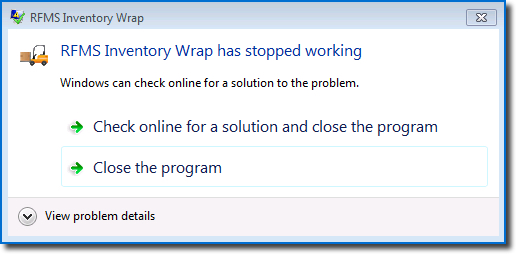
Stopped Working/Wrap Errors are generally caused by environmental issues such as permissions, network drops, communication blocks, etc. It is a generic error that requires a process of elimination to find the cause and fix.
- The first step is to have the user(s) reboot their workstation to see if the errors stop.
- If the workstation has already been rebooted and the errors continue, the next step is to have your technician reapply permissions (security and sharing) for the user(s) to the RFMS program folder. Note: it's important to remove and reapply permissions, not just verify they are set. One reason for this is we have found Windows updates, whether on workstation or servers, can cause grief with permissions. For reference, we recommend users to have Full Control, so they can create, modify and remove files, such as tmp files. Alternatively, UNC paths can be used so users do not have a mapped drive access to the folder.
- If the errors continue after the workstation has been rebooted and permissions have been reapplied, please submit a Support Request with the following details and screenshots.
- Is this error occurring on just one user's workstation, or is it happening on other workstations too?
- What steps/processes is the user doing in RFMS when the error occurs?
- Are they able to replicate this error by performing those same steps/processes in RFMS?
- Have the user(s) take a screenshot of the error and record what time it happened.
- Check the Event Viewer for more information about the errors. Note, depending on how the user(s) connect to RFMS, check the Event Viewer logs on the user's workstation and/or Terminal Server.
- To check the Event Viewer, go to: Control Panel > Administrative Tools > Event Viewer > Windows Logs.
- In the left panel of the Event Viewer expand "Windows Logs"
- Review both the Application Logs and the System Logs (listed under Windows Logs) for the time frame of the errors. Make certain your preview pane is visible in the bottom of the window to show the error details.
- Highlight any errors you see present and take screenshots of the entire window showing the error information.
Comments
Article is closed for comments.