
Full Billing Group and Partial Billing User Guide
A billing group connects multiple orders for reporting and processing. A billing group must be used for Progress (Partial Billing) and percentage Billing, but orders can be grouped together simply for reference.
When orders are in a billing group they are treated as units under a single header. Editing of two or more of the units (orders) cannot happen at the same time because of the edits have to post back to the header.

Short Cut to Open an Order in a Billing Group
To open a single order in a billing group without opening the full billing group
- Highlight the order
- Right Click the Edit Button
- Click the Edit Order Button
This prevents having to open the billing group details and saves time.
Billing Group Options
Click the Invoice Billing Group button on the Customer Browse Screen  .
.

Create New Billing Group
Choose this option to begin a billing group with the highlighted order as the primary order.
Select Existing Billing Group
Choose this option to add the current customer order to an existing billing group. Single-click a billing group and click the Select button at the top of the screen. This will add the current customer order to that billing group.

Find a Billing Group
This option allows searching for a particular billing group.
Search for the Billing Group by Group Number or Description then highlight the line by single clicking on it. Click the Select button at the top of the screen to choose the Billing Group and the billing group screen will display without adding an order to the group.
Billing Group Screen
The details of this billing group are outlined on this screen to view or edit if necessary. Exit this screen to go back to the Customer Browse Screen.
The Tool Bar
 |
Exit |
Exits the Billing Group screen. |
|
 |
Help |
Displays the on-line help system for the current screen. |
|
 |
Select |
Not Available. |
|
 |
Insert |
Adds a new Customer Order to the Billing Group or selects an existing order to add to the Billing Group. |
|
 |
Edit |
Edit the highlighted order. (Only available if not final billed.) |
|
 |
Delete | Removes Order from the Group |
|
 |
View Lines
|
View Lines on highlighted order.
|
|
 |
Add Ons & Credit Memos |
Allows Credit Memos and Add-ons attached to the highlighted customer order to be VIEWED. Change orders are added and job costed from the original customer order
|
Add-ons and Credit Memos should be added by opening one of the orders in the billing group and clicking on the Add-on/Credit Memo button from the edit order screen (not the List Orders Screen).
|
 |
Overage |
Allows overages to be added to the highlighted customer order. |
|
 |
Post Payment |
Allows a payment to be posted to the highlighted Customer Order. |
|
 |
View Receipts |
Displays a listing of all payments posted to the highlighted order. If there are no payments posted to the order, this button will not be available. |
|
 |
View Notes |
Displays any notes entered for the highlighted customer order. A note can also be added to the order using this button. After a note has been added a small button will appear in the far-left column of this screen. |
|
 |
Change Status |
Make the highlighted order a change order. |
|
 |
Post Provider Information |
Allows entering Provider charges for the highlighted customer order. The Integrate Provider’s Earnings option must be set to yes in System Options. For job costed orders, this selection allows viewing provider records for that order. |
|
 |
Work Order |
Allows adding a work order to the highlighted order. Work order lines may also be tagged for printing. |
|
 |
Job cost |
Allows job costing the highlighted customer order if all lines are in a cut or delivered status. |
|
 |
View Job cost |
View job cost information for the highlighted order. |
|
 |
|
Allows printing various documents for the highlighted order. Invoice (delivered jobs only), Acknowledgement (un-delivered), Receipt History, Picking Ticket, Work Order, Job cost Sheet, Billing Notice, Estimate Job cost Sheet |
|
 |
AIA Billing |
Create AIA billing. |
|
 |
Baseline |
Create or report a baseline. Click here for details. |
|
 |
Attachment |
Attach or view an attached file for the highlighted order. |
|
 |
Schedule |
Schedule installation or create a scheduling alert for the highlighted order. |
|
 |
|
Send an email or RFMS mail message regarding the highlighted record. |
|
|
|
Tracking Record |
Click to view the tracking record created for every record insert made into Orders, Quotes and Bid Pro Estimates. If gray, no records are present. |
|
|
|
CMM |
Brings up the Client Management remote actions screen and allows adding a CMM action or relate a CMM record to this record. Yellow indicates that CMM information is associated with the highlighted record |
|
|
|
PDF History |
View the PDF History of reports for the highlighted reocrd |
|
|
|
Customer Pickup |
For more information, click here. |
 or
or

 or
or 

Project Information

Primary Order Number
This number is the original invoice number. It is indicated in the list by a green check mark.

Project Number
The Billing Group Number is displayed in this field.
Project Information
Enter the name of the Billing Group. If not edited, the default Billing Group name will be "BILLING GROUP FOR INVOICE…" This name will be shown on billing group related reports.

The project number and project information from billing groups are now being included in the .csv file of these reports:
- Provider’s Earnings Order Entry>Reports>Provider's Earnings.
- Job Cost Analysis Sales Reports>File>Profitability>Job cost Analysis
- Materials Analysis Sales Reports>File>Materials Analysis>Orders
Contract

Setting a contract permanently sets the contract amount and baseline. A contract date and amount are recorded. An Undo button is available in case of the contract being set by mistake.
Check the Allow Finance Charge box to allow a finance charge on the current billing group.
If a Billing Group is in Contract, a new order is added or an existing order is changed (other than changes orders), and the Current Total for the billing group no longer equals the Original Contract Amount, then the Contract Amount, Current Total and Discrepancy Amount will display in bold red text.
Partial Billing

Setting a billing group as a partial billing group allows billing notices to be generated and retainage to be added to the billing group.
Creating/Undoing Partial billing is done via buttons and can be password protected.
The Last Billing Number field show how many biling have taken place in the bililng group. It will increase each time an order has been job costed and billed.
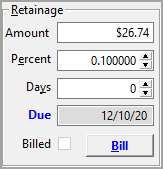
Retainage

A check box indicates that retainage has been billed. Until retainage has been billed, it will recalculate with changes in the billing group total.
The retainage can be changed either by entering the amount or the percentage. Editing one will cause the other one to automatically recalculate.
A No Retainage display box was added to the Billing Group Screen. The value displayed pertains to the highlighted order. This applies to change orders which have been set to be not included when calculating retainage.
Amount – Displays the total amount of retainage for this billing group.
Percent – Enter the percent of retainage held on for this billing group, this will calculate the amount.
Days – Enter the amount of retainage days for this billing group. If the days are left at zero the retainage well be automatically billed on the final bill.
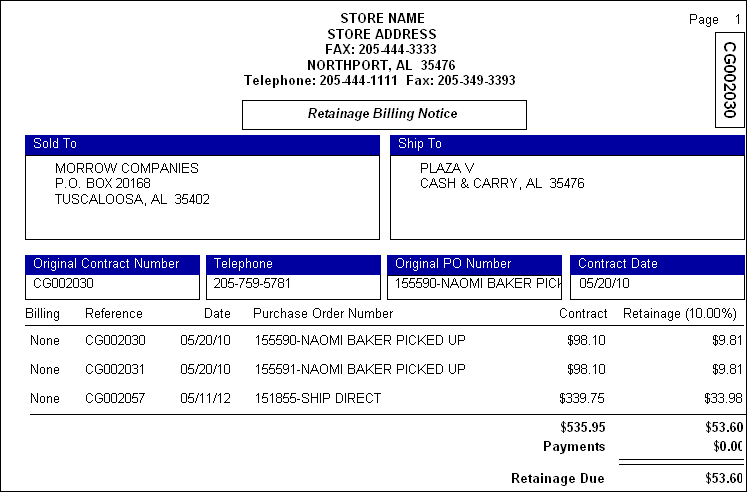
After the retainage is due (All orders have been delivered and the retainage days are met), a bill button will be available. Click the button to create a retainage billing notice and change the status to billed.
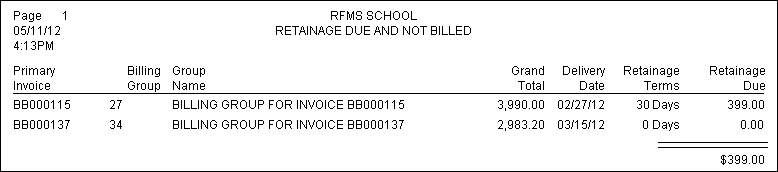
A report of retainage to be billed can be found at Order Entry>Reports>Retainage Due.

If the Bill button is checked, it will print, but not remove from the AR Aging. If a billing notice is printed, it will automatically check the Billed box and NOT show on the aging.
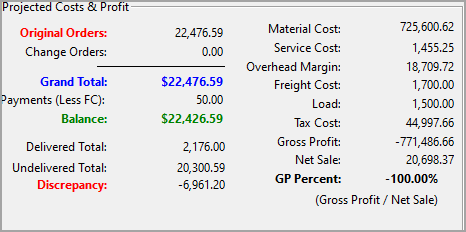
Projected Costs & Profit

This section allows viewing what has affected the job total. Any Change Orders (add-on’s or credit memos) and payments will display here. This information will be included on the Billing Notice.
Current Total –total of all orders which are not change orders in the billing group
Balance -This field displays the running balance due for all customer orders in a particular billing group.
Grand Total-This field displays the grand total to be billed for all customers in a particular billing group. = Current total + Change Orders.
In addition, Costs, Gross Profit and GP% can be seen here. These figures are arrived at by pre-job costing each order in the group. The figures are calculated upon entry and are adjusted when inserting, editing, or deleting orders from the billing group. Also, when designating a change order and posting payments. The larger the group, the longer it takes to calculate.
When an order that is in a Billing Group has been job costed, actual figures are used rather than the pre-job cost projection figures. Thus, as other orders in the Billing Group are job costed, the projections become more and more accurate.
Viewing Orders
The billing group information can be sorted by clicking on the following tabs
- Order number
- Customer Name
- Order Date
- Delivered Date
- Billing Number
Comments
Article is closed for comments.